Installing GMetrix on Apple Silicon Macs
GMetrix’s Adobe-integrated practice exams run through a plugin panel inside the Adobe app itself (internally named “LITA,” visible in the plugin folder names gmetrix.lita.adobe.illustrator, gmetrix.lita.adobe.photoshop, and so on). That plugin is built on Adobe’s older CEP extension framework, which was never rebuilt for Apple Silicon — so on an M-series Mac, both GMetrix’s own app and the Adobe application it’s plugging into have to run under Rosetta for the plugin to load at all.
On this page
Which Adobe version to install
Install exactly one version of each app: the newest version inside GMetrix’s supported range for the 2025 Exam Version, the one that matches this district’s FDD (Illustrator), ADD (Premiere Pro), and PDD (Photoshop) courses. Ranges come from GMetrix’s SMS Compatibility: Adobe Creative Cloud page, as of this table’s last check:
| App | Install this version |
|---|---|
| Illustrator (FDD) | 29.8.1 |
| Premiere Pro (ADD) | 25.5 |
| Photoshop (PDD) | 26.11 |
| InDesign | 20.5 |
| After Effects | 25.5 |
| Animate | not listed for 2025 at last check |
| Dreamweaver | N/A (no longer covered) |
Don’t leave these apps on auto-update. Creative Cloud can walk an app past the top of GMetrix’s range without anyone noticing until a test won’t launch, so pin the version by packaging it through the Adobe Admin Console (see Step 1). Re-check GMetrix’s live compatibility page before each testing window: if GMetrix has raised the top of a range, update the package to the new top version.
Adobe removed CEP extension support from Photoshop starting with the 2025 release line (v26+), and CEP is the framework GMetrix’s plugin depends on. That’s why Photoshop’s range has an upper bound instead of just “latest”: don’t update past 26.11 assuming a newer Photoshop will keep working with GMetrix.
Step 1: Build the Adobe package in the Admin Console
Install the lab’s Adobe apps from a managed package built at adminconsole.adobe.com (Packages → Create a package) instead of letting each Mac install whatever Creative Cloud currently offers. A package is how you pick a version inside GMetrix’s supported range (the table above) and put that same version on every lab Mac through Jamf.
-
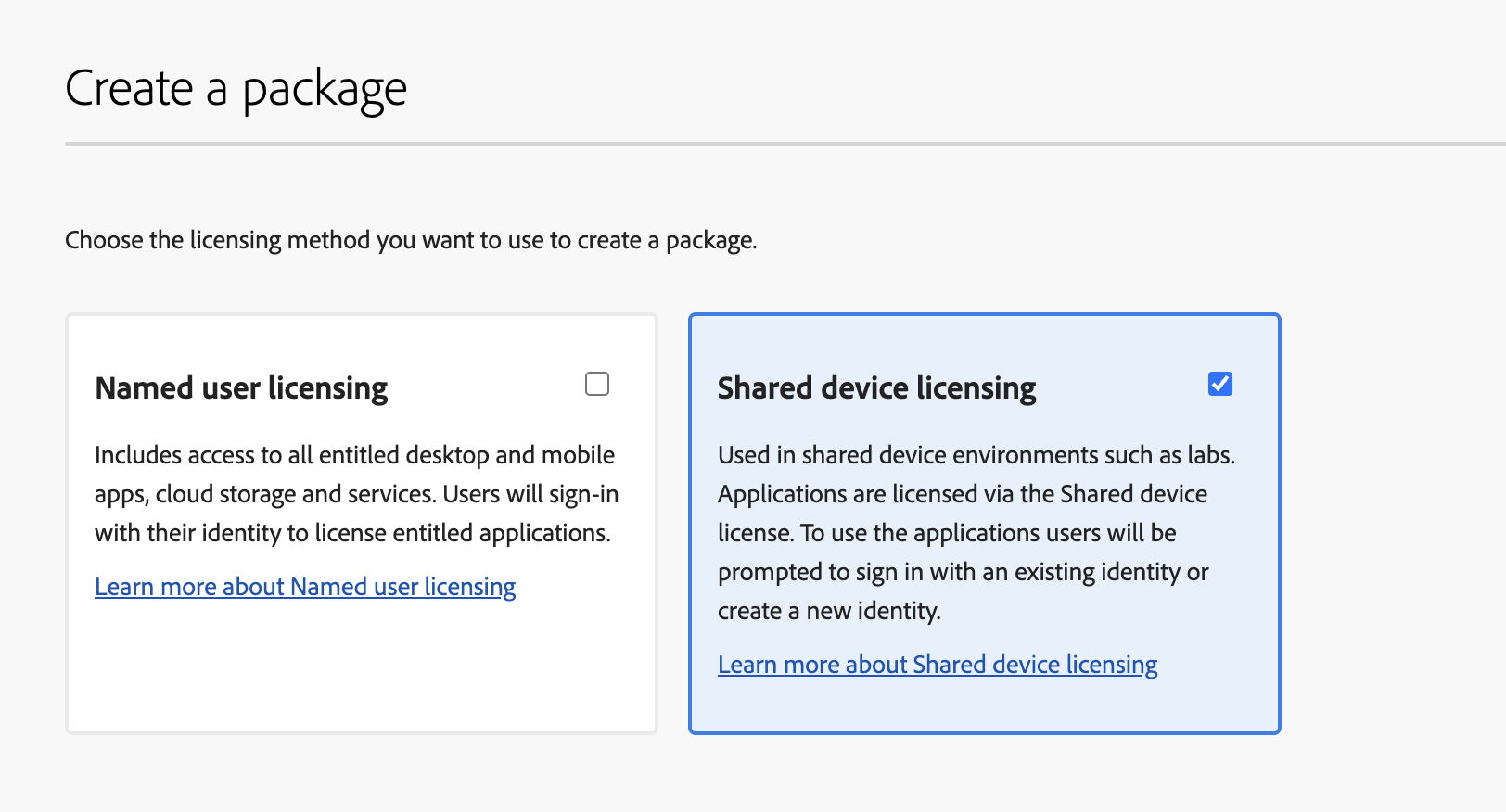
Licensing method: Shared device licensing. This is the lab option. Apps are licensed to the machine through the district’s K-12 shared device license, and students sign in with their own school identity when they open an app. Named user licensing is for a single person’s own machine, like a teacher laptop.
-
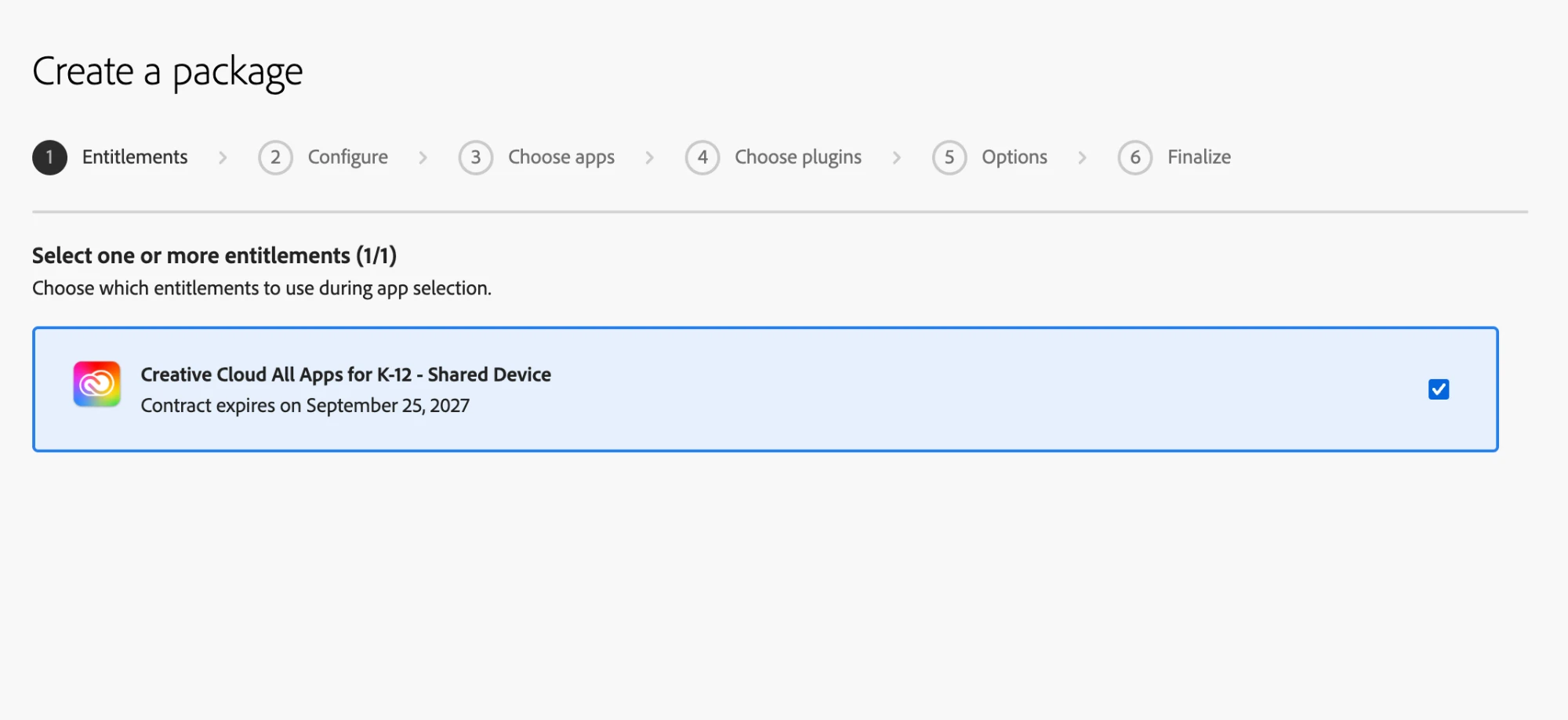
Entitlements: check Creative Cloud All Apps for K-12 - Shared Device.
-
Configure: set the platform to macOS (Intel) and leave Use OS Locale on (it falls back to English (North America)).
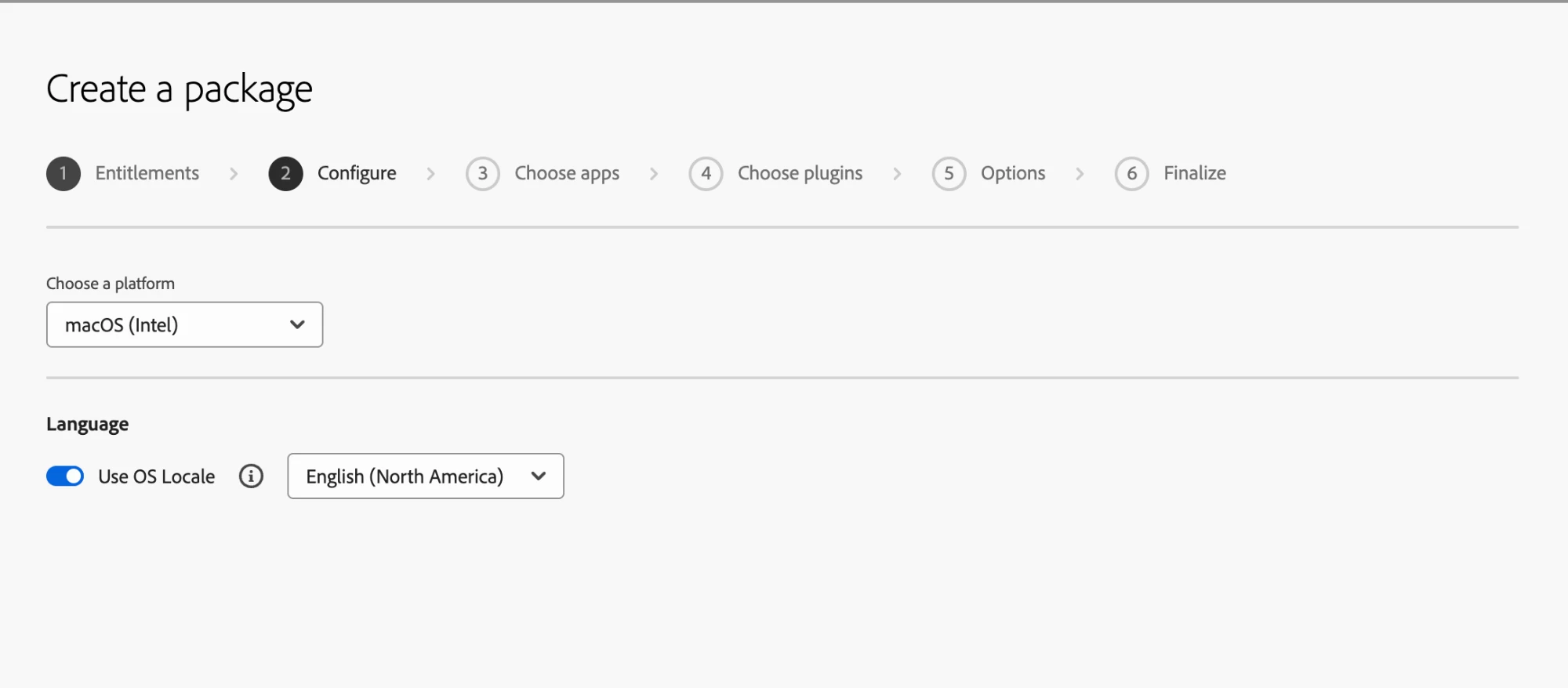
The Intel builds are meant to run under Rosetta on Apple Silicon Macs, which is what GMetrix’s plugin panel needs. Still do Step 2 for every app: opening it with Open in Rosetta from the Creative Cloud app is the method confirmed to work in this lab.
-
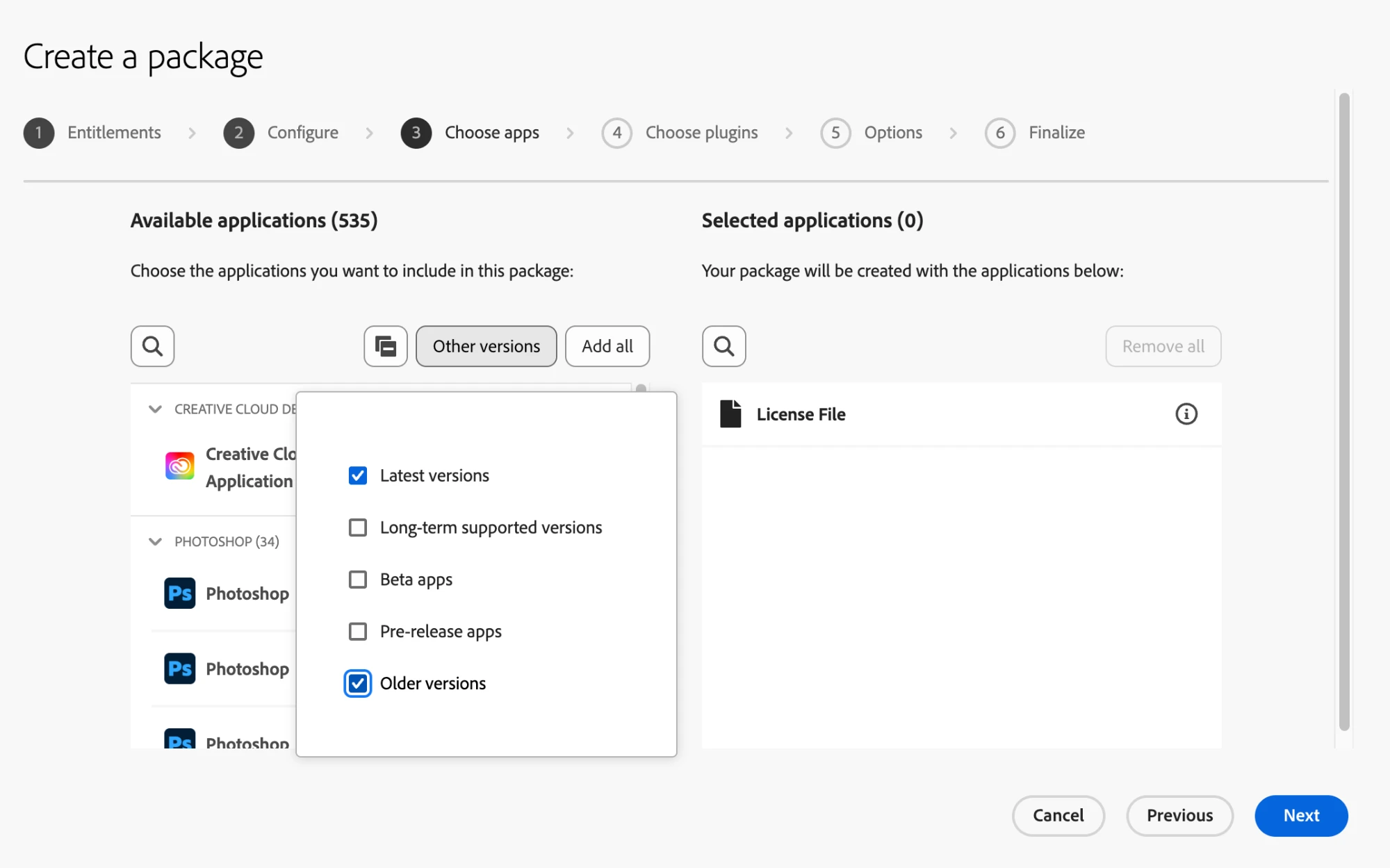
Choose apps: click Other versions, keep Latest versions checked, and check Older versions (leave long-term supported, beta, and pre-release unchecked). Without Older versions the list only offers each app’s newest release, which may be past the top of GMetrix’s supported range. Then add one version of each app, the exact version from the table above: Illustrator 29.8.1, Premiere Pro 25.5, and Photoshop 26.11. Don’t add any other versions of the same app. The License File is added to the package automatically.
-
Choose plugins, Options, Finalize: GMetrix’s plugins aren’t added here; GMetrix SMS installs them into each Adobe app itself in Step 3, after the apps are set up to run in Rosetta. Finish the remaining steps, name the package, and let Adobe build it. When it’s ready, download it from the Packages list and deploy it through Jamf like the lab’s other packages.
Step 2: Set each Adobe app to run in Rosetta
Do this before installing GMetrix. GMetrix’s plugins are built on Adobe’s older CEP framework, which only loads when the Adobe app is running in Rosetta, so every Adobe app has to be set up to run in Rosetta before GMetrix installs its plugins in Step 3. Do it for every Adobe app the lab runs GMetrix practice exams through.
- Open the Creative Cloud desktop app and go to Apps → Installed apps.
- Find the Adobe app, click ••• (More actions) next to its Open button, and choose Open in Rosetta. (Finder’s Get Info → Open using Rosetta checkbox doesn’t work on this lab’s Macs; use the Creative Cloud app instead.)
- To confirm it’s running in Rosetta, open Activity Monitor and check that the app’s Kind column says Intel, not Apple.
- In the Adobe app, go to Preferences → Plugins → Legacy Extensions and enable both options there. (GMetrix’s article just says “both options”; Adobe has changed this dialog’s labels across releases, so check the wording on a test Mac.)
- Quit the Adobe app, then repeat steps 1–4 for the next one.
Treat Open in Rosetta as applying only to that launch. Whenever an Adobe app is used for a GMetrix exam, open it with Open in Rosetta first, then start the exam in GMetrix SMS. Students follow the same steps on the FDD 2.1 handout (Illustrator) and the ADD 2.1 handout (Premiere Pro).
What students run on every new log-on (observed in class). After opening Illustrator in Rosetta and quitting it, students run three GMetrix SMS tasks: Tasks → Delete Test Resource Archive, then Plugins → Illustrator → Install Illustrator Plugin and Reinstall Illustrator Plugin Workspace Files (ADD runs the same two rows under Plugins → Premiere Pro). Each one currently prompts for the local administrator password, so the teacher has to type it at every machine, three times each. If there’s a way to let these GMetrix tasks run without an admin prompt on the lab Macs, it would save a lot of class time.
If GMetrix was already installed before an app was set to Rosetta, its plugin for that app won’t load. Finish this step for the app, then delete that app’s GMetrix plugin folder (path in Troubleshooting) and let GMetrix SMS reinstall it.
Step 3: Install GMetrix SMSe and its plugins
- On the Mac, go to gmetrix.net/GetGMetrixSMS.aspx and select Download SMSe.
- Open
GmetrixSMSe.dmgfrom the Downloads folder. - Drag the GmetrixSMSe icon onto the Applications folder shortcut in the same window.
- Open the Applications folder and double-click GmetrixSMSe to launch it. macOS may prompt for the local admin password on first launch.
- Launch a practice exam in each Adobe app through GMetrix SMS to confirm its plugin panel loads.
If a plugin still doesn’t appear, check folder permissions at
Macintosh HD → Library → Application Support → Adobe → CEP. macOS can silently block the read/write access GMetrix needs to load new question content mid-test.
General macOS system requirements for GMetrix (per GMetrix’s own docs): macOS 10.10 or newer, a 64-bit machine with hardware-accelerated graphics for simulation-based exams, and a high-speed internet connection. None of that is Apple-Silicon-specific; the Rosetta requirement in Step 2 is about the Adobe apps, not GMetrix SMSe itself.
Troubleshooting
| Symptom | Likely cause / fix |
|---|---|
| Plugin panel never appears in the Adobe app | The Adobe app wasn’t running in Rosetta when GMetrix installed its plugin. Do Step 2 for that app, then delete its GMetrix plugin folder (next row) and let GMetrix SMS reinstall it. This is the single most common miss. |
| “The GMetrix LITA extension could not be loaded because it was not properly signed” | A known signing/registry issue on Windows; on Mac, try removing and letting GMetrix SMS reinstall the plugin folder (~/Library/Application Support/Adobe/CEP/extensions/gmetrix.lita.adobe.<app>) rather than editing it by hand. |
| GMetrix SMS says it can’t locate the Adobe application | In GMetrix SMS, open the settings/options wheel, select the affected application, scroll to Change Filepath, and point it at the app’s actual install path. |
| Premiere Pro: test seems to hang right at start | Some sample project files need to convert on first open — this doesn’t count against the test timer, let it finish. |
| After Effects opens the Render Engine instead of the full app | Uninstall the After Effects Render Engine component and reopen After Effects normally. |
Sources
- How-to Install Adobe Applications (GMetrix)
- Issue Loading Photoshop Plugins With Apple Silicon Computers (GMetrix)
- If Your SMS Cannot Locate Your Adobe Application (GMetrix)
- Adobe LITA Extension Cannot Load (GMetrix)
- How to Install GMetrixSMSe on macOS (GMetrix)
- Adobe Version Compatibility (GMetrix)
- SMS Compatibility: Adobe Creative Cloud (GMetrix)
- Gmetrix Adobe Plugins Capture (Solved) — Jamf Nation Community
This session couldn’t reach support.gmetrix.net directly to quote these articles verbatim (network restriction). The versions in the table above are the top of each range on GMetrix’s compatibility page, pasted in directly from that page, and the Admin Console packaging steps come from screenshots of this district’s own console. Everything else on this page (the GMetrix installation and Rosetta/Legacy Extensions steps) is reconstructed from search-indexed summaries of GMetrix’s own published articles, cross-checked against an independent Jamf Nation admin thread describing the same fix in practice. Re-verify the procedural steps against the live pages before relying on this for a real deployment.