2.1 | GMetrix Setup & ACP Pre-Test
Today is different from every other day this year. No new Illustrator content, no worksheet. The entire period is about getting you set up in the platform you’ll use for the rest of the course, and finding out where you’re starting from.
Bell Ringer / Hook (~10 min)
Before a driving instructor lets you behind the wheel for real lessons, they usually watch you drive once first, without teaching you anything yet. Why would they do that instead of just starting to teach? What does that first drive tell them that a first lesson couldn’t?
GMetrix Account Setup (~15 min)
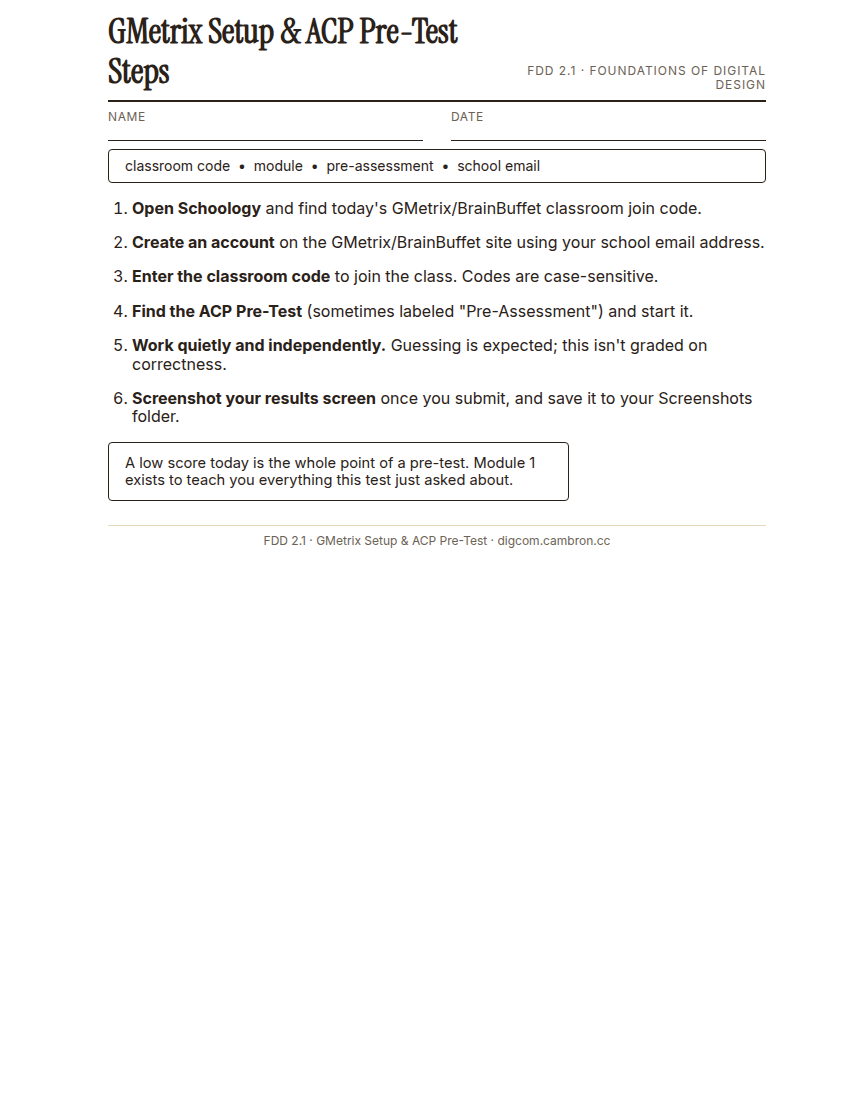
Complete the handout, three hole punch it, and keep it in your class binder.
⬇ Download Worksheet (PDF)“Every ACP course this year runs alongside GMetrix/BrainBuffet. Today’s the day we get you actually into it.”
- Open Schoology and find today’s GMetrix/BrainBuffet classroom join code, posted in the course materials.
- Go to the GMetrix/BrainBuffet site (link posted alongside the code) and create an account using your school email address. Not a personal one.
- Enter the classroom code to join our class. If it doesn’t work, double-check for typos before asking. Codes are case-sensitive.
If your school-email verification email doesn’t arrive, flag the teacher right away instead of troubleshooting alone. First-day sign-up snags are common and worth solving live, not something to quietly sit stuck on.
ACP Pre-Test (~40 min)
- Once you’re in, find the ACP Pre-Test (sometimes labeled “Pre-Assessment”) and start it. This is separate from Module 1’s regular lessons.
- Work quietly and independently. This isn’t graded on correctness, and it isn’t something you’ve been taught yet, so guessing is expected on plenty of questions. Answer everything you can reason through, and don’t stress over the rest.
- Finish the whole pre-test before moving on to anything else. Don’t start Module 1 today.
Cold call check, once most students finish: what’s one question you genuinely had no idea about? That’s completely fine to say out loud. That’s exactly what this test is for.
Post Results & Reflect (~8 min)
- Find your results/score screen once the pre-test submits.
- Take a screenshot showing your score clearly.
- Save it to your Digital Design Drive folder, in the Screenshots folder.
A low score today is not a bad grade. It’s the whole point. Module 1 exists to teach you everything this pre-test just asked about.
Exit Ticket / Wrap-Up (~5 min)
Which part of the pre-test felt hardest, or most unfamiliar? No wrong answer here, just be honest.
🗂 Organize: Save your GMetrix pre-test results screenshot in the Screenshots folder of your Digital Design project folder on Google Drive.
📤 Exit Ticket: Stoplight. In the discussion board below, let us know how you’re doing: G (green: I’ve got this, ready to move on), Y (yellow: I mostly get it, still have a question), or R (red: I’m stuck, I need help). Then explain your rating in at least 3 sentences (aim for 5): what specifically about today’s skill makes you feel that way, and, if you’re yellow or red, what your actual question is.
Stuck on how to start? Try: “I picked ___ because ___. Specifically, when I tried to ___, I ___. One thing that would help is ___.”