4.4 | Refining Paths
Key Terms
- Simplify
- A command that reduces the number of anchor points on a selected path while preserving its overall shape. Useful for cleaning up a traced or freehand-drawn path that has far more points than it needs.
- Smooth Tool
- Reduces jaggedness in a path by redrawing it with fewer, smoother curves as you drag it directly over the existing path.
- Join
- Connects two open path endpoints into a single point (as a corner or a smooth point), or closes an open path into one continuous loop.
- Clean Up
- A menu command that removes stray points, unpainted objects, and empty text paths left behind in a document. Good housekeeping before finishing a file.
- Outline Stroke
- Converts a path’s stroke into its own closed, fillable vector shape, so a line’s thickness becomes a real shape rather than a stroke setting.
- Offset Path
- Creates a new path a specified distance inside or outside an existing path. The basis of common “sticker outline” or nested-line effects.
- Eraser Tool
- Removes parts of a path or shape by dragging across it, automatically re-closing whatever path remains.
- Scissors Tool
- Cuts a path at a clicked point, splitting it into two separate endpoints.
- Knife Tool
- Freehand-cuts through one or more objects along the path you drag, dividing filled shapes into separate pieces.
- Shape Builder Tool
- Merges, subtracts, or extracts overlapping shapes. Click a region to keep it, drag across several regions to merge them, or click-and-hold Option/Alt to subtract.
- Live Paint
- A mode that treats a group of intersecting paths as if painted with real ink. Click any enclosed region to fill it with color, or click any segment to give it its own stroke, all without needing separate closed shapes.
- Compound Path
- Two or more paths combined into a single, unified path. Commonly used to punch a see-through hole in a shape (like the counter of a letter “O”).
- Pathfinder
- A panel of one-click boolean operations, Unite, Minus Front, Intersect, Exclude, and more, that combine multiple overlapping shapes into new, single shapes.
Real paths are rarely clean on the first try. Today you’ll learn the tools professional illustrators use constantly to fix, simplify, and combine paths. Skills you’ll need starting next class to actually build your S4 piece.
Direct Instruction | Live Demo (~10 min)
“Watch what happens to the anchor point count when I run Simplify on this messy path. Same shape, way fewer points to manage.”
The teacher live-demos on a sample low-poly shape:
- Simplify: reducing a messy, over-pointed path.
- Join: connecting two open endpoints into one clean point.
- Shape Builder: dragging across two overlapping facets to merge them into one shape.
- Pathfinder Unite / Minus Front: combining or subtracting shapes with a single click.
Recall: What does Simplify actually change about a path? Analysis: Why might Shape Builder be faster than Pathfinder for merging just two shapes, but Pathfinder faster for merging many at once? Synthesis: If you had a path with an obvious extra loop of stray points in one corner, which tool from today would you reach for first, and why?
Guided Practice | Clean & Combine (~23 min)
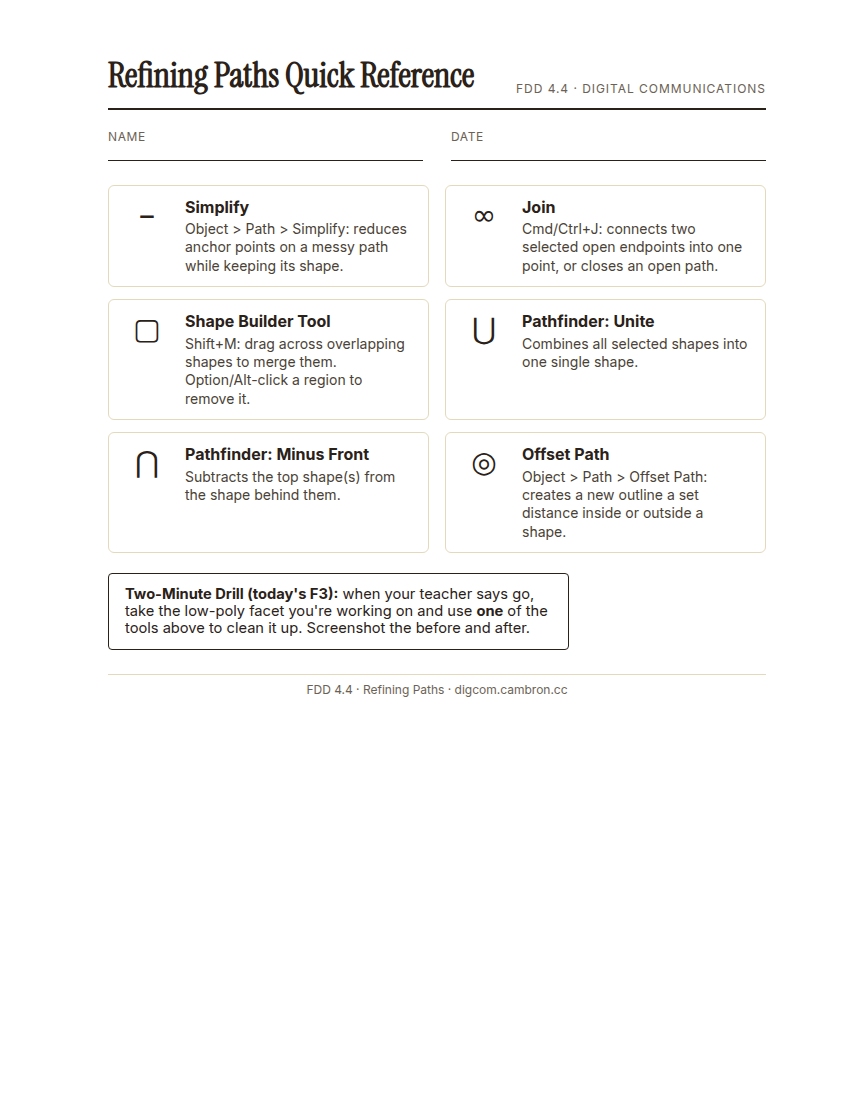
Complete the handout, three hole punch it, and keep it in your class binder.
⬇ Download Worksheet (PDF)- Clean up (~8 min): open one of your messy practice paths from 4.2. Use Join to close any open gaps, then run Simplify and compare the anchor point count before and after.
- Combine facets (~15 min): draw or reuse 3–4 small low-poly facet shapes. Use the Shape Builder tool to merge some of them into one larger shape, then try the same merge again using Pathfinder > Unite to compare the two workflows.
Shape Builder merges what you drag across. Pathfinder merges everything currently selected. Pick whichever matches how much of the shape you want to combine at once.
Exit Ticket / Wrap-Up (~5 min)
Two-Minute Drill: when your teacher announces go, take one facet you’re still working on and clean it up with any tool from today. Screenshot the before and after.
Which tool from today do you think you’ll use most while building your actual S4 piece?
🗂 Organize: Put your answer to which tool you’ll use most on S4 in your binder. Save your before/after Two-Minute Drill screenshot in the Photos folder of your Digital Design project folder on Google Drive. Save your Illustrator file showing at least one Shape Builder or Pathfinder merge in the Project Files folder of your Digital Design project folder on Google Drive.
📤 Exit Ticket: 3-2-1. On a scrap of paper, write in complete sentences, not a list of fragments: 3 sentences describing things you did or made today, 2 sentences naming techniques or tools you used and how, and 1 sentence asking a question you still have.
Stuck on how to start? Try: “Today I ___. I also ___. I used ___ to ___. I also used ___ to ___. I’m still wondering ___.”