9.4 | Exporting for Screen & Print
Key Terms
- Asset Export Panel
- A panel (Window > Asset Export) for collecting objects or artboards you’ll export repeatedly, then batch-exporting all of them at once, each at multiple scales and formats in a single click.
- Use Artboards
- An option in Illustrator’s export dialogs that exports each artboard in the document as its own separate file, using the artboard’s name in the file name. The standard way to export a multi-artboard document (a sticker sheet, a set of icons) without manually exporting each one.
The exact same artwork needs a different export for a website than it does for a print shop. > get the color mode, format, or resolution wrong, and the file that looked perfect on your screen prints muddy or displays with a giant white box where transparency should be.
Every project you’ve built all year eventually needs to leave Illustrator. Today’s the lesson on doing that correctly, for two very different destinations: a screen, and a printing press.
[10 Mins] Bell Ringer / Hook
A design looks perfect on your monitor, but the printed version comes back looking dull and slightly wrong-colored. What’s the most likely cause?
“Probably a color mode mismatch. RGB was built for screens, CMYK for ink. Today’s about matching your export settings to where the file is actually going.”
[10 Mins] Direct Instruction
“I Do”: using a multi-artboard practice file, the teacher live-demos:
- Opening the Asset Export panel, dragging in several artboards, and batch-exporting them all at once as PNGs with Use Artboards enabled. One file per artboard, automatically named.
- Comparing that to exporting the same set as SVG for a responsive website use case.
- Switching to a print-bound export: File > Export > Export As, choosing PDF, confirming the document’s color mode is CMYK (not RGB) and resolution is at least 300 ppi for any raster content.
- Naming the tell-tale symptoms of a mismatched export: RGB colors shifting when printed, low resolution artwork looking blurry at full size, missing transparency support flattening incorrectly.
Check for Understanding Recall: “What export option lets you export every artboard as its own file in one click?” Analysis: “Why does an RGB export look fine on screen but potentially wrong when printed?” Synthesis: “Your S9 client brand project needs a website logo and a printed business card from the same artwork. What’s different about how you’d export each one?”
[23 Mins] Guided Practice
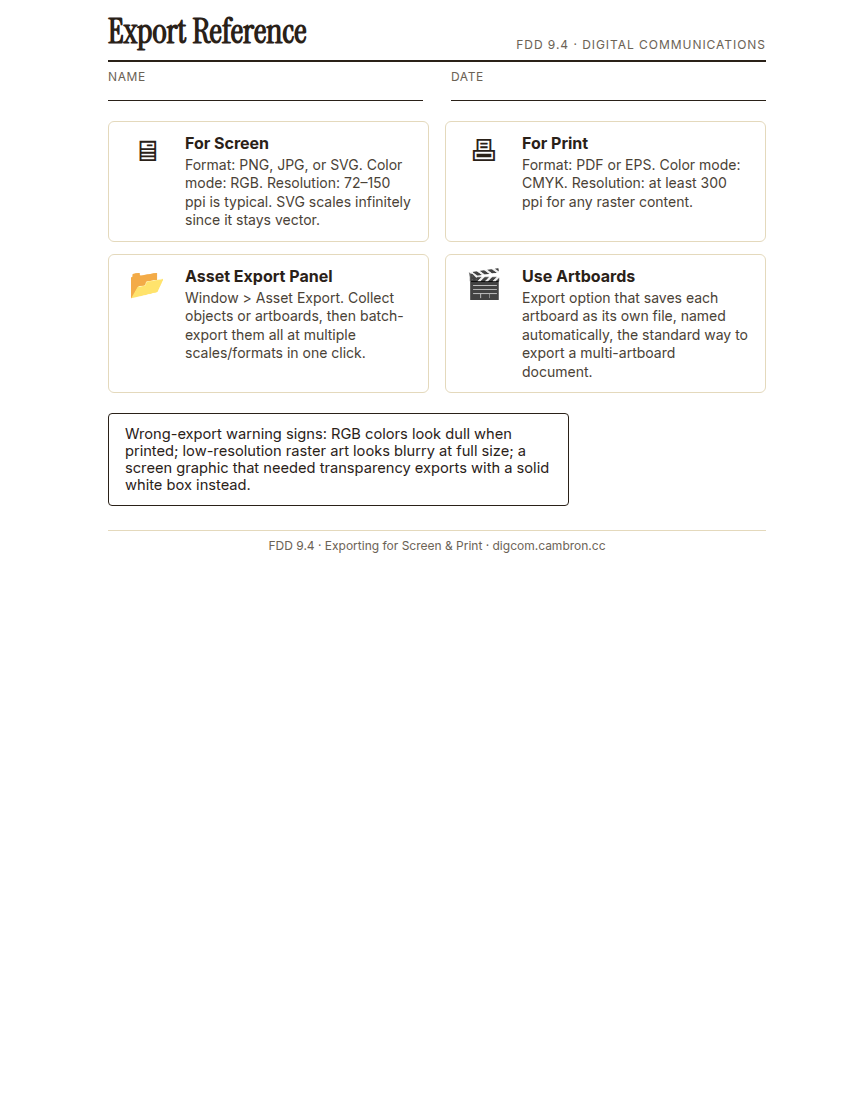
Complete the handout, three hole punch it, and keep it in your class binder.
⬇ Download Worksheet (PDF)- Open the provided multi-artboard practice file.
- Use the Asset Export panel with Use Artboards to batch-export the whole set as PNGs for screen use.
- Export the same file as a print-ready PDF, confirming CMYK color mode and adequate resolution.
- Partner review: trade exported files with a partner and check for any wrong-output symptoms in each other’s files.
- Write one sentence justifying your format/color mode/resolution choice for each destination.
[30 Mins] GMetrix / BrainBuffet Self-Guided Strand
Continue GMetrix Practice Test 1 (training mode).
[5 Mins] Exit Ticket / Wrap-Up
Save your exports in a folder named LastName_FirstName_9_4_Export/. You now have all four Unit 9 tools, copyright judgment, project packaging, placing/linking, and export, ready for S9.
🗂 Organize: Put one sentence justifying your format/color mode/resolution choice for each in your binder. Save your screen-ready export set (Asset Export panel, Use Artboards) in the Exports folder of your Digital Design project folder on Google Drive. Save your print-ready export (PDF) in the Exports folder of your Digital Design project folder on Google Drive.
📤 Exit Ticket: 3-2-1. On a scrap of paper, write in complete sentences, not a list of fragments: 3 sentences describing things you did or made today, 2 sentences naming techniques or tools you used and how, and 1 sentence asking a question you still have.
Stuck on how to start? Try: “Today I ___. I also ___. I used ___ to ___. I also used ___ to ___. I’m still wondering ___.”