9.3 | Placing & Linking Assets
Key Terms
- Embedding
- Placing a raster image into an Illustrator file so its full pixel data is copied directly into the document. The file grows larger, but it never breaks if the original image moves or is deleted.
- Linking
- Placing a raster image as a reference to an external file, which Illustrator displays at preview resolution but doesn’t copy into the document. Keeps the .ai file small, but the link breaks (“missing”) if the original file moves, is renamed, or is deleted.
- Edit Original
- A command, available on both linked and embedded images, that reopens the original image file in its source application (for example, Photoshop) for editing. Save the change there, and the Links panel shows the placed image updated automatically.
Linking keeps your file small and editable at the source. Until someone moves the original. Embedding never breaks. But it never shrinks your file, either. Today’s lesson is choosing on purpose, not by accident.
You just learned why File > Package copies linked files into a Links folder. Today explains exactly what “linked” means, what breaks it, and how to fix it. Plus the alternative, embedding.
[10 Mins] Bell Ringer / Hook
You open a project file and every placed photo shows up as a gray box with a question mark. What do you think happened?
“That’s a broken link. The placed image’s source file moved, was renamed, or got deleted. Today we learn to prevent it, diagnose it, and fix it.”
[10 Mins] Direct Instruction
“I Do”: the teacher live-demos:
- Placing the same image twice, once as Linked, once as Embedded, and comparing file size and the Links panel entry for each.
- Moving the linked image’s source file to a different folder on purpose, then reopening the document to show the resulting missing link warning.
- Using the Links panel and Relink to point the document back at the moved file.
- Selecting a placed image and choosing Edit Original to open it in a raster editor, making a small change, saving, and showing the placed image update automatically in Illustrator.
Check for Understanding Recall: “What panel shows you whether a placed image is linked or embedded, and whether a link is broken?” Analysis: “Why did embedding the image never break, even after I moved the original file?” Synthesis: “You’re handing off a project folder to a client who might want to update photos themselves later. Would you link or embed those photos, and why?”
[23 Mins] Guided Practice
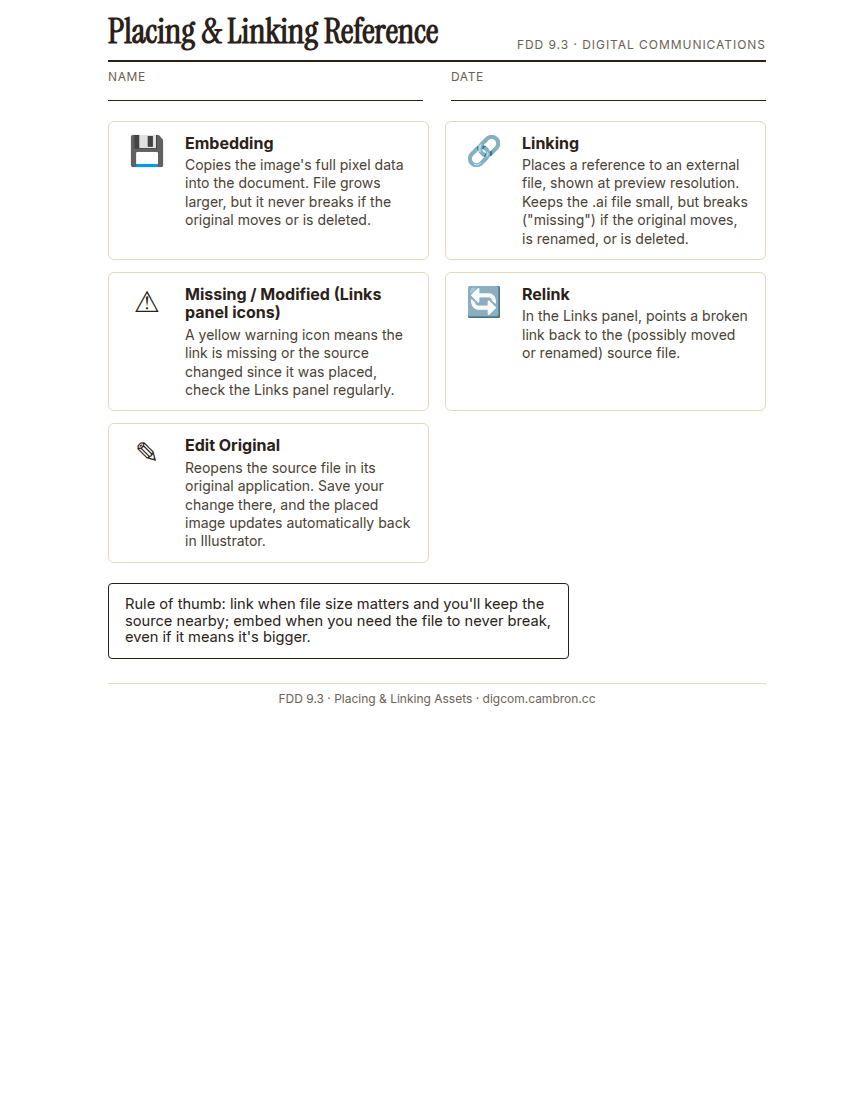
Complete the handout, three hole punch it, and keep it in your class binder.
⬇ Download Worksheet (PDF)- Place one image as linked and one as embedded in your practice file, and note the file size difference.
- Partner swap: trade practice folders with a partner after they’ve moved or renamed one linked file on purpose.
- Diagnose the resulting broken link using the Links panel and repair it with Relink.
- Use Edit Original on one placed image to make and save a real edit, then confirm it updated inside Illustrator.
[30 Mins] GMetrix / BrainBuffet Self-Guided Strand
Finish GMetrix Module 6 if not already complete, then begin GMetrix Practice Test 1 (training mode). All 6 course modules are now complete for students on pace.
[5 Mins] Exit Ticket / Wrap-Up
Save your file as LastName_FirstName_9_3_PlacingLinking.ai.
🗂 Organize: Put one sentence explaining whether you chose linking or embedding for your own practice file, and why in your binder. Save your before/after Links panel screenshots (broken link found and fixed) in the Photos folder of your Digital Design project folder on Google Drive.
📤 Exit Ticket: Emoji Meter. On a scrap of paper, draw ONE face that matches how confident you feel about today’s skill: 🙁 (not yet), 😐 (getting there), or 🙂 (got it). Then explain why in at least 3 sentences (aim for 5), connecting your answer to something specific from today, not just a general feeling.
Stuck on how to start? Try: “I drew ___ because ___. Specifically, when I tried to ___, I ___. Next time I want to ___.”