3.2 | Shape Tools
Key Terms
- Live Shape
- A rectangle, rounded rectangle, ellipse, polygon, or star drawn with Illustrator’s shape tools that remains fully editable (exact dimensions, individual corner radii) until it’s deliberately expanded into a plain path.
- Bounding Box
- The invisible rectangle marking an object’s full width and height, used whenever the object is scaled, rotated, or aligned.
- Corner Radius Widget
- The small draggable control that appears at a Live Shape’s corner, letting you round that corner interactively without changing the underlying path.
- Polygon Tool
- Draws a shape with straight sides, evenly spaced around a center point. Tapping the Up/Down arrow keys while dragging adds or removes sides.
- Star Tool
- Draws a multi-pointed star shape. The same arrow-key trick adds or removes points, and holding Option/Alt while dragging keeps the star’s arms straight instead of curving inward.
- Isolation Mode
- A temporary editing mode (entered by double-clicking a group or object) that dims everything else on the artboard, letting you edit just that item without accidentally affecting the rest of your artwork.
You’ve used Rectangle, Ellipse, and Line before (S1). Today you’ll go deeper, with real control over exact size, corners, and two new tools.
Direct Instruction (~10 min)
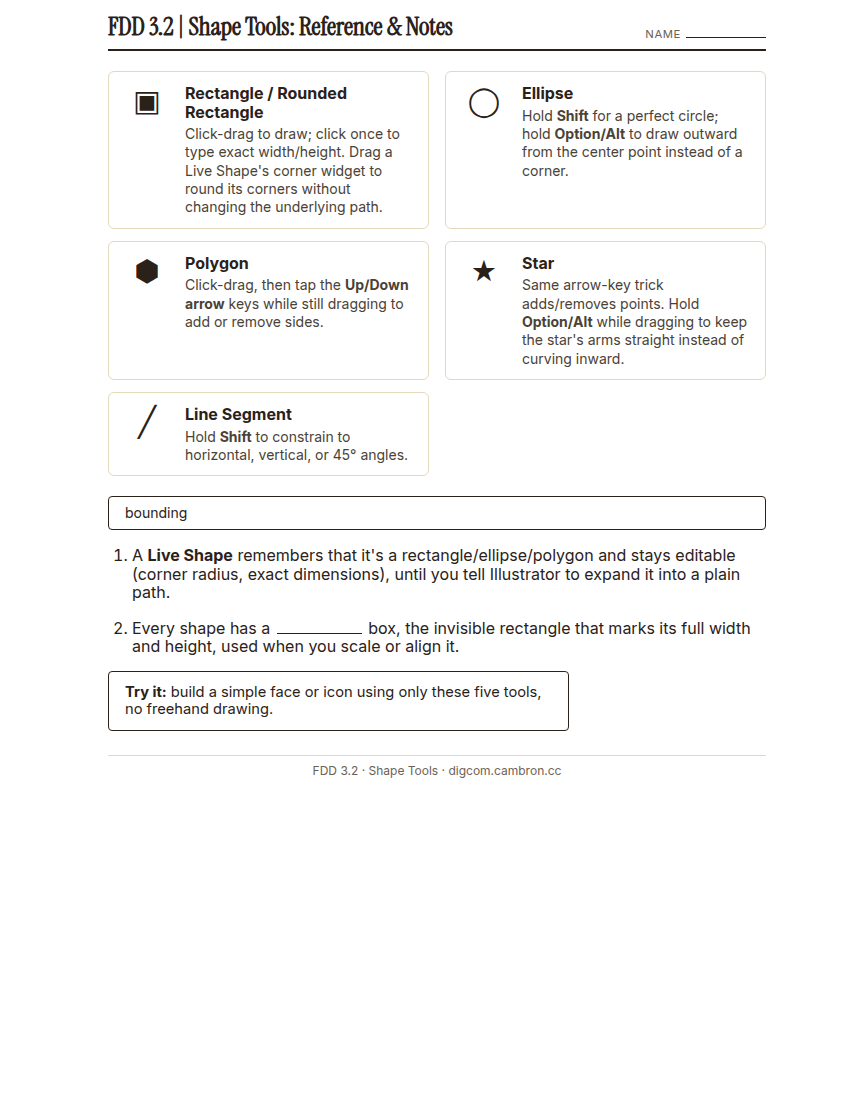
Complete the handout, three hole punch it, and keep it in your class binder.
⬇ Download Worksheet (PDF)Every shape you draw with a shape tool is a Live Shape: it stays fully editable (drag the little corner-radius widget to round a corner, or use the Control Panel to type exact width and height) until you tell Illustrator to expand it into a plain path.
“Watch: I’ll draw a rectangle by dragging, then click once instead and type in exact numbers. Same tool, but now I have pixel-perfect control instead of guessing by eye.”
Add the two new tools: Polygon (tap the Up/Down arrow keys mid-drag to add or remove sides) and Star (same arrow-key trick for points, and hold Option/Alt to keep the arms straight). Every shape also has a bounding box: the invisible rectangle Illustrator uses whenever you scale, rotate, or align it.
Scaffolded questions. Cold-call through all three:
Recall: “What’s a Live Shape, and how is it different from a plain path?”
Analysis: “Why might typing exact dimensions be better than dragging by eye for some projects, but not others?”
Synthesis/Extension: “If you had to build a stop sign using only these 5 tools, which one(s) would you reach for, and what modifier would you need?”
Guided Practice | Build an Icon (~23 min)
- Pick a simple subject: a house, a robot face, a coffee cup, anything recognizable as basic geometric shapes.
- Build it using only Rectangle, Ellipse, Polygon, Star, and Line Segment. No freehand drawing, no Pen tool.
- Use at least 2 keyboard modifiers (Shift to constrain, Option/Alt to draw from center or keep a star’s arms straight, arrow keys to add/remove sides or points).
- Enter at least one shape’s dimensions numerically instead of dragging it by eye.
- Turn and Talk: show a partner your in-progress icon (cover the label). Can they guess what it’s supposed to be?
Cold call check: which of the 5 shape tools did you NOT end up using, and could your icon have worked without one of the tools you did use?
GMetrix/BrainBuffet (~30 min)
Continue Module 2: Dobson Branding Style Guide: today’s sections build shape-based icon work directly relevant to what you just practiced.
Exit Ticket / Wrap-Up (~5 min)
🗂 Organize: Put your modifier-key list in your binder. Save your finished icon screenshot in the Photos folder of your Digital Design project folder on Google Drive.
📤 Exit Ticket: Glow & Grow. On a scrap of paper, write about today’s work in at least 3 sentences (aim for 5): describe one Glow (something that went well) and one Grow (one thing you’d do differently or improve next time), explaining each with real detail, not just a phrase.
Stuck on how to start? Try: “My Glow today was ___, because ___. My Grow is ___. Next time I’ll try ___.”