8.3 | Transform, Resize & Speed
Key Terms
- Scale
- Resizing a clip within the frame. Scaling up beyond 100 percent loses resolution, since the software is stretching existing pixels rather than adding new detail.
- Rotation
- Turning a clip around a fixed point, measured in degrees. Small rotations fix a crooked horizon; large ones are a deliberate stylistic choice.
- Letterboxing
- Black bars added above and below (or beside) footage to preserve its original aspect ratio when placed in a differently-shaped frame, instead of stretching or cropping it to fit.
- Generative Expand
- An AI-based tool that fills in new pixels beyond a clip’s original frame edges, useful for reframing footage into a different aspect ratio without a hard crop.
- Rolling Edit
- Adjusting the edit point between two adjacent clips, shortening one while lengthening the other, so the total sequence duration doesn’t change.
- Ripple Edit
- Trimming a clip’s length while automatically shifting every clip after it earlier or later in time to close or maintain the gap.
- Rate Stretch
- A tool that changes a clip’s speed by dragging its edge directly in the timeline, instead of using a separate speed dialog.
- Time Remapping
- An effect that lets a clip’s speed change gradually or at specific keyframed points within a single clip, instead of one flat speed for the whole thing.
- Freeze Frame
- Holding on a single frame of video for an extended duration, stopping all motion while playback continues.
A clip’s frame size and speed aren’t fixed once it’s shot. Today’s about the tools that reshape both, on purpose, without wrecking quality.
Direct Instruction (~10 min)
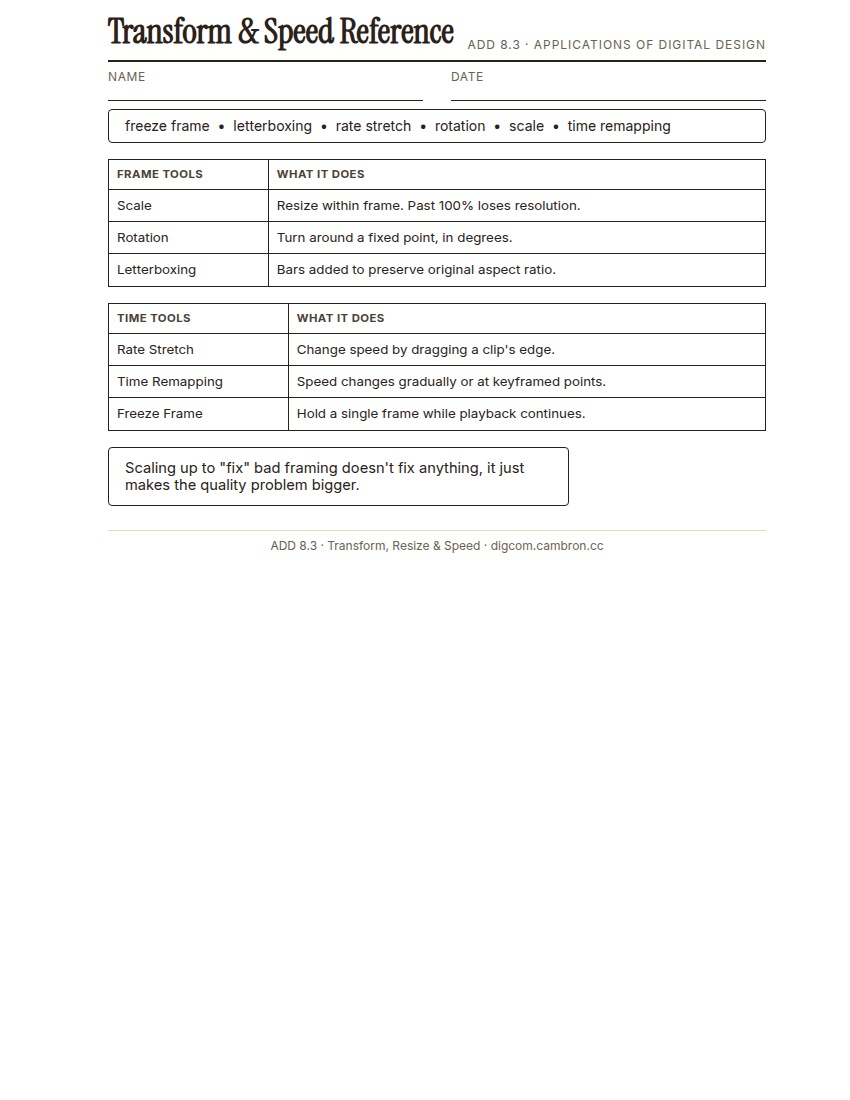
Complete the handout, three hole punch it, and keep it in your class binder.
⬇ Download Worksheet (PDF)The Transform effect controls scale, rotation, and position. Scaling past 100 percent stretches existing pixels rather than adding detail, so quality drops fast. When a clip’s aspect ratio doesn’t match your sequence, you have options besides a hard crop: letterboxing (preserve the whole frame, add bars), or Generative Expand (AI-fill new pixels at the edges).
On the time side: Rate Stretch changes speed by dragging a clip’s edge directly in the timeline; time remapping lets speed change gradually or at keyframed points within one clip; a freeze frame holds a single frame while playback continues around it.
“Scaling a clip up to 150 percent to ‘fix’ a bad framing choice on set doesn’t fix anything, it just makes the quality problem visible at a bigger size. Reframe in-camera when you can.”
Scaffolded questions. Cold-call through all three:
Recall: “What happens to image quality when you scale a clip past 100 percent?”
Analysis: “Why might letterboxing be a better choice than cropping for a shot with important action near the frame’s edges?”
Synthesis/Extension: “You need the same 16:9 interview clip to work as a 9:16 vertical post. What’s your plan, and what will you lose?”
Guided Practice (~23 min)
- Open the provided 16:9 clip and a sequence set to a different aspect ratio.
- Reframe it using the Transform effect, keeping the subject in frame with minimal quality loss.
- Apply one speed effect: Rate Stretch, time remapping, or a freeze frame, with a clear reason for the choice.
- Small-group report-out: which target aspect ratio required the most creative trade-offs?
What content got cropped out of frame when you reframed your clip? Did it matter to the shot?
GMetrix/BrainBuffet (~30 min)
Continue this term’s Premiere Pro GMetrix module.
Exit Ticket / Wrap-Up (~5 min)
🗂 Organize: Put your guided notes in your binder. Save your reframed + speed-effected clip in the Project Files folder of your Digital Design project folder on Google Drive.
📤 Exit Ticket: Emoji Meter. On a scrap of paper, draw ONE face that matches how confident you feel about today’s skill: 🙁 (not yet), 😐 (getting there), or 🙂 (got it). Then explain why in at least 3 sentences (aim for 5), connecting your answer to something specific from today, not just a general feeling.
Stuck on how to start? Try: “I drew ___ because ___. Specifically, when I tried to ___, I ___. Next time I want to ___.”