9.3 | Export & Media Encoder
Key Terms
- Codec
- The specific algorithm used to compress and decompress a video file. H.264 and ProRes are both codecs; “format” (like .mp4 or .mov) is the container the codec’s data lives inside.
- Alpha Channel
- An extra channel in a video file that stores transparency information, letting one clip show through to whatever’s layered beneath it. Required for exporting graphics or effects meant to composite over other footage.
- Quick Export
- A one-click export preset in Premiere for fast, simple deliveries when you don’t need to customize settings.
- Batch Processing
- Queuing multiple exports to run one after another without manual restarts between each one, essential when a single project needs several delivery versions.
- Queue
- Adobe Media Encoder’s list of pending export jobs, letting Premiere keep editing while exports render in the background.
Every export you’ve done so far used the same H.264 settings. Today’s about why that choice was right for those projects, and what changes when the delivery scenario doesn’t.
Direct Instruction (~10 min)
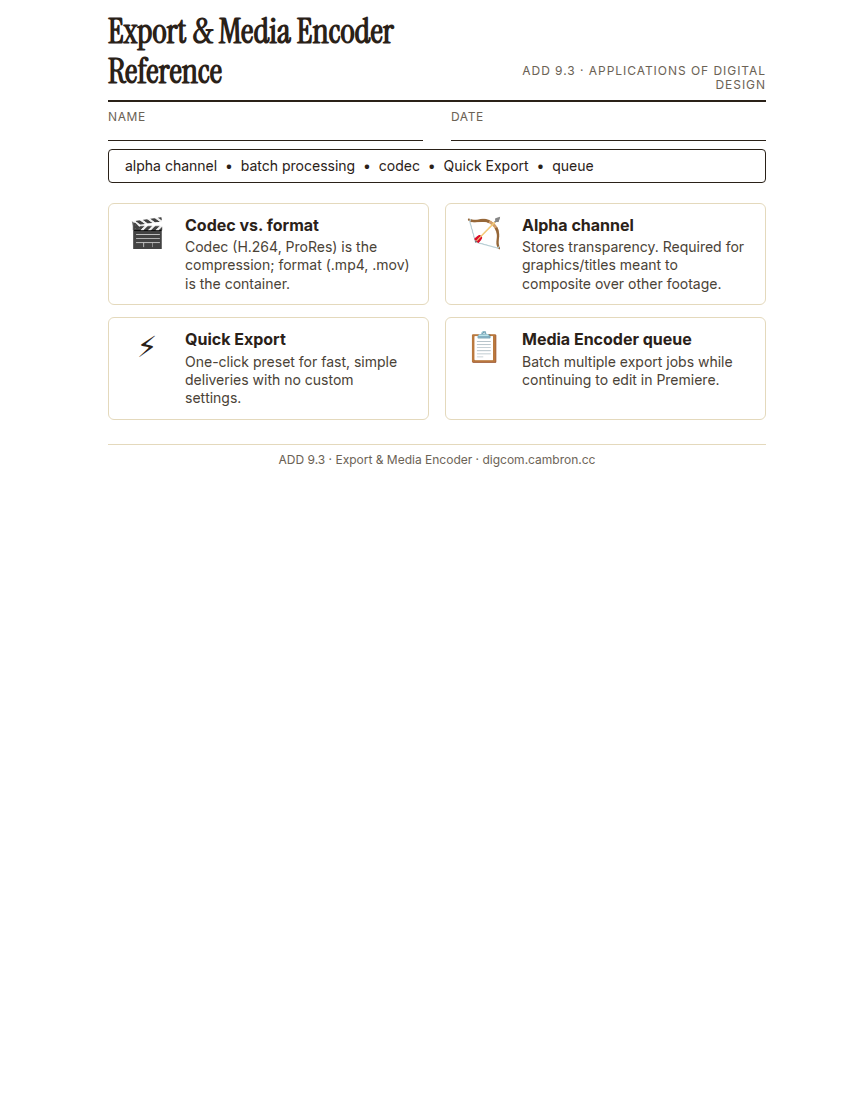
Complete the handout, three hole punch it, and keep it in your class binder.
⬇ Download Worksheet (PDF)A codec (H.264, ProRes) is the compression algorithm; the file format (.mp4, .mov) is just the container it travels in. Export a graphic or title that needs to layer over other footage with its alpha channel preserved, or the transparency is lost. Quick Export is fine for a fast, simple delivery with no special settings. For anything more, Adobe Media Encoder’s queue lets you send multiple export jobs and keep editing while they render in the background, real batch processing instead of babysitting one export at a time.
Export Finished Project
- Go to
File>Export>Media> - Specify your export settings
- File Name:
YYYY-MM Project Name-Lastname - Location:
Google Drive/My Drive/Digital Design/YYYY-MM Project Name/Exports - Preset:
Match Source(or use a High Quality Preset to reduce file size) - Format:
H.264(The most compatible format)
- File Name:
- Choose H.264 from the Format menu. This will create an mp4 file on export.
- Click Export. The export script will run until finished.
“‘Match Source’ isn’t a lazy default, it’s usually the right call: it keeps your export as close to your original footage’s quality as possible without you having to guess settings.”
Scaffolded questions. Cold-call through all three:
Recall: “What’s the difference between a codec and a file format?”
Analysis: “Why would exporting a title graphic without its alpha channel break a compositing workflow?”
Synthesis/Extension: “You need to deliver the same project as a small web file AND a full-quality archive master. What’s different about those two exports?”
Guided Practice (~23 min)
- Choose a finished sequence from an earlier project.
- Export version 1: a web-delivery version (H.264, Match Source or a high-quality preset).
- Export version 2: a different scenario (archive master, or a graphic with alpha channel preserved), with settings matched to that scenario.
- Queue both in Adobe Media Encoder rather than exporting one at a time through Premiere.
- Small-group report-out: which settings did your group choose for your assigned scenario, and why?
Why isn’t “just use the default settings” a safe strategy for every delivery scenario?
GMetrix/BrainBuffet (~30 min)
Continue this term’s Premiere Pro GMetrix module.
Exit Ticket / Wrap-Up (~5 min)
🗂 Organize: Put your guided notes / export-settings reference sheet in your binder. Save your two batch-exported versions in the Exports folder of your Digital Design project folder on Google Drive.
📤 Exit Ticket: Emoji Meter. On a scrap of paper, draw ONE face that matches how confident you feel about today’s skill: 🙁 (not yet), 😐 (getting there), or 🙂 (got it). Then explain why in at least 3 sentences (aim for 5), connecting your answer to something specific from today, not just a general feeling.
Stuck on how to start? Try: “I drew ___ because ___. Specifically, when I tried to ___, I ___. Next time I want to ___.”