9.4 | Archiving with the Project Manager
Key Terms
- Archiving
- Saving a finished project, including all its media, in an organized state so it can be reopened and understood months or years later, by you or anyone else.
- Consolidate and Transcode
- Gathering every media file a project actually uses into one place (consolidate) and converting it to a standard format (transcode), so an archived project isn’t scattered across a dozen folders in a dozen formats.
- Collect Files
- Premiere’s Project Manager feature that copies every clip a sequence actually uses (and only those clips) into a new, self-contained project folder.
- Offline Media
- A clip Premiere can’t find, shown as a red placeholder in the timeline, usually because the original file was moved, renamed, or deleted.
- Naming Convention
- A consistent, predictable pattern for naming files (LastName_FirstName_Project_v2.mp4) so anyone on a team, including future you, can tell what a file is without opening it.
A project you can’t reopen cleanly in a year isn’t archived, it’s just saved somewhere. Today’s about making sure it actually is what it looks like.
Direct Instruction (~10 min)
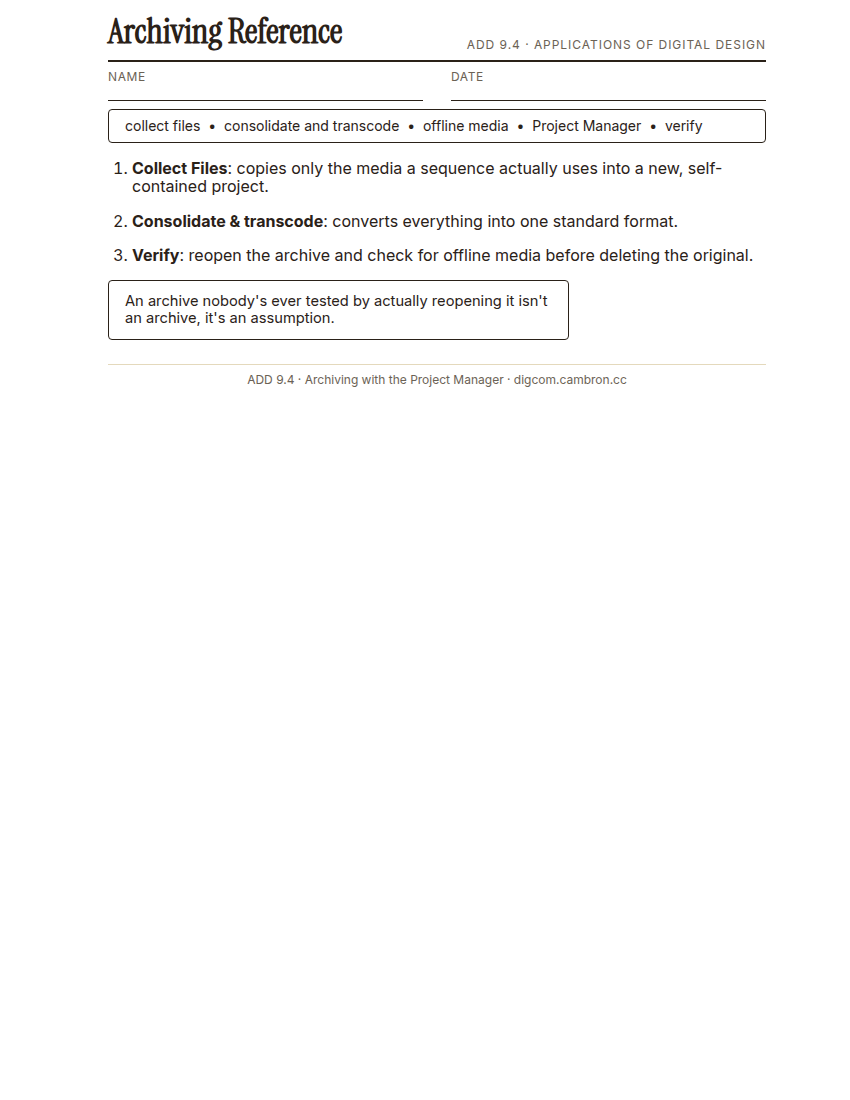
Complete the handout, three hole punch it, and keep it in your class binder.
⬇ Download Worksheet (PDF)Premiere’s Project Manager is the tool for this. Collect Files copies only the media a sequence actually uses (not your whole raw-footage folder) into a new, self-contained project. Consolidate and transcode goes further, converting everything into one standard format so an archive isn’t a patchwork of codecs a future machine might not support. Before you delete anything from the original location, verify the archive by actually reopening it and checking for offline media, any clip Premiere can’t find is a broken archive, not a finished one.
“An archive nobody’s ever tested by actually reopening it isn’t an archive, it’s an assumption. Test it before you delete the original.”
Scaffolded questions. Cold-call through all three:
Recall: “What’s the difference between Collect Files and consolidate and transcode?”
Analysis: “Why would skipping the verification step (actually reopening the archive) be risky, even if Project Manager reported success?”
Synthesis/Extension: “You’re archiving a project for a client who might reopen it on a completely different computer in two years. What does that change about your approach?”
Guided Practice (~23 min)
- Choose a finished project from an earlier unit.
- Run Project Manager: Collect Files, then consolidate and transcode.
- Reopen the archived version in a new location (or have a partner open it) and check for offline media.
- Fix anything broken before calling the archive complete.
- Partner check: swap archived projects and confirm each other’s reopens with zero offline clips.
What would a stranger (or future you) need to see in this archive to trust it’s actually complete?
GMetrix/BrainBuffet (~30 min)
Continue this term’s Premiere Pro GMetrix module.
Exit Ticket / Wrap-Up (~5 min)
🗂 Organize: Put your guided notes in your binder. Save your archived project folder in the Project Files folder of your Digital Design project folder on Google Drive.
📤 Exit Ticket: 3-2-1. On a scrap of paper, write in complete sentences, not a list of fragments: 3 sentences describing things you did or made today, 2 sentences naming techniques or tools you used and how, and 1 sentence asking a question you still have.
Stuck on how to start? Try: “Today I ___. I also ___. I used ___ to ___. I also used ___ to ___. I’m still wondering ___.”