8.2 | Symbols & Graphic Styles
Key Terms
- Dynamic vs. Static Symbol
- A Dynamic symbol allows limited edits to an individual instance (like recoloring it) without breaking its link back to the master symbol. A Static symbol locks every instance identically to the master. Any edit has to be made to the symbol itself, which updates every instance at once.
- Graphic Style
- A saved, reusable combination of appearance attributes. Fills, strokes, effects, and transparency. Stored in the Graphic Styles panel. Apply the same complex look to any object in one click. Updating the style later updates every object it’s applied to.
A pattern repeats automatically and can’t be nudged one tile at a time. A symbol repeats on purpose. And you can still move, scale, or recolor a single instance without breaking the others.
Today’s tools solve a specific problem: what if you need the same graphic 20 times across a document, but each one needs to be positioned, or even recolored, independently? That’s a symbol, not a pattern.
[10 Mins] Bell Ringer / Hook
If you needed the same little star icon to appear 12 times on a poster, at different sizes and rotations, would you copy-paste it 12 times, or is there a smarter way?
“Copy-paste works until you need to update all 12 at once. Today’s answer to that problem is the Symbols panel.”
[10 Mins] Direct Instruction
“I Do”: the teacher live-demos, using a simple original icon:
- Selecting the icon and dragging it into the Symbols panel (or Object > Symbol > New Symbol) to create a master symbol, choosing Dynamic so instances can be recolored independently.
- Dragging out 3 instances of the symbol, scaling and rotating each one differently.
- Editing the master symbol (double-clicking to enter isolation mode) and showing every instance update at once. Except the one instance whose color was changed independently, which keeps its own tint thanks to the Dynamic setting.
- Selecting a finished, styled object and saving it to the Graphic Styles panel, then applying that saved style to an unrelated object with one click.
Check for Understanding Recall: “What panel do you drag artwork into to turn it into a reusable symbol?” Analysis: “Why did editing the master symbol update most instances at once, but not the one I’d recolored?” Synthesis: “You’re building an icon set for a client’s app. 20 icons that all need to share the exact same drop-shadow-and-outline look, and the client might ask for a color change later. Which two tools from today solve that, together?”
[23 Mins] Guided Practice
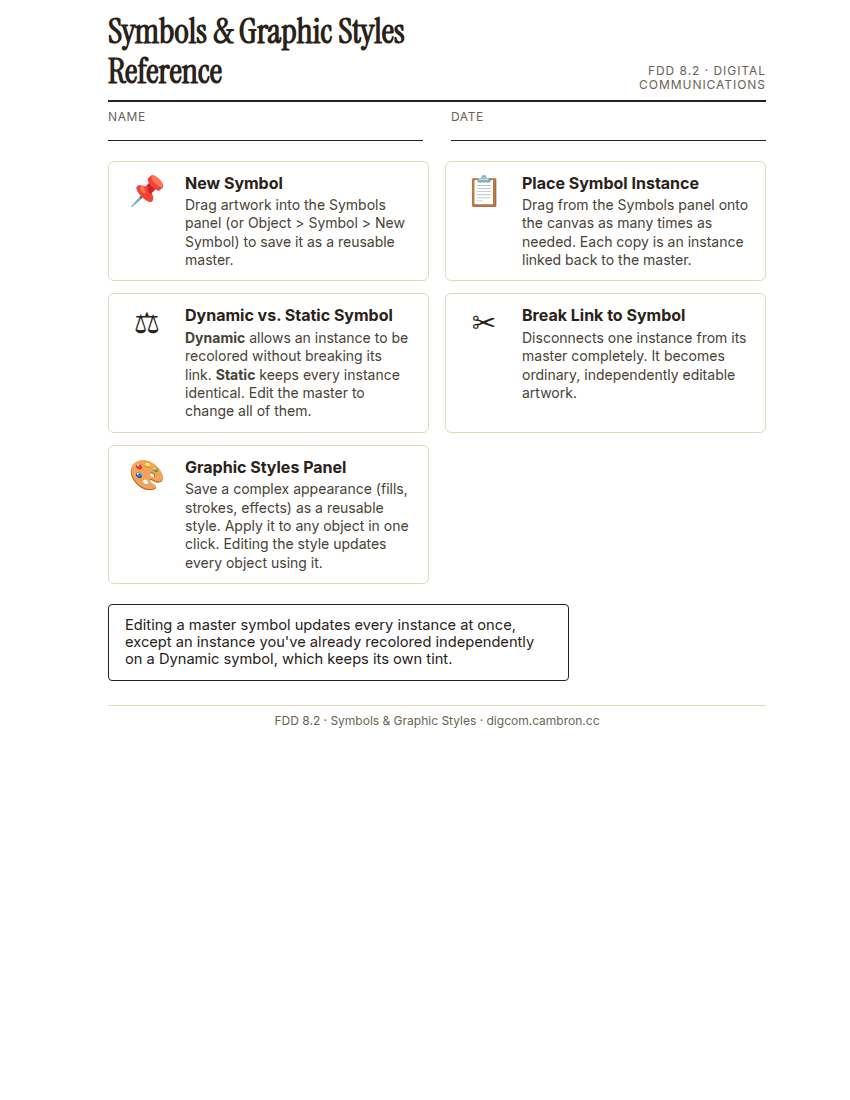
Complete the handout, three hole punch it, and keep it in your class binder.
⬇ Download Worksheet (PDF)- Draw or reuse a simple icon/shape and save it as a Dynamic symbol.
- Place at least 3 instances, varying scale and rotation, and recolor at least one instance independently.
- Build a distinct appearance (fill, stroke, effect) on one object and save it as a graphic style.
- Apply that saved style to every instance so your finished set reads as one consistent icon family.
[30 Mins] GMetrix / BrainBuffet Self-Guided Strand
Continue GMetrix Module 5. Dobson Business Card. Watch for where the business-card design reuses a logo or icon as a symbol rather than copy-pasting it.
[5 Mins] Exit Ticket / Wrap-Up
Save your file as LastName_FirstName_8_2_SymbolsStyles.ai.
🗂 Organize: Put one sentence naming whether you used a dynamic or static symbol, and why in your binder. Save your finished icon set (at least 3 placed instances of one symbol) in the Project Files folder of your Digital Design project folder on Google Drive.
📤 Exit Ticket: Glow & Grow. On a scrap of paper, write about today’s work in at least 3 sentences (aim for 5): describe one Glow (something that went well) and one Grow (one thing you’d do differently or improve next time), explaining each with real detail, not just a phrase.
Stuck on how to start? Try: “My Glow today was ___, because ___. My Grow is ___. Next time I’ll try ___.”