8.4 | Asset Management & Submission
Key Terms
- Archiving
- Saving a finished project, including all its media, in an organized state so it can be reopened and understood months or years later, by you or anyone else.
- Consolidate and Transcode
- Gathering every media file a project actually uses into one place (consolidate) and converting it to a standard format (transcode), so an archived project isn’t scattered across a dozen folders in a dozen formats.
- Collect Files
- Premiere’s Project Manager feature that copies every clip a sequence actually uses (and only those clips) into a new, self-contained project folder.
- Offline Media
- A clip Premiere can’t find, shown as a red placeholder in the timeline, usually because the original file was moved, renamed, or deleted.
- Naming Convention
- A consistent, predictable pattern for naming files (LastName_FirstName_Project_v2.mp4) so anyone on a team, including future you, can tell what a file is without opening it.
- Playhead
- The vertical line marking the current position in a sequence or clip, showing where playback starts and where edits are applied.
- JKL Navigation
- The standard editing shuttle: J plays backward, K pauses, L plays forward. Pressing J or L multiple times increases playback speed in that direction.
- Markers
- Small flags placed on a clip or sequence at a specific point in time, used to note something worth returning to (a beat, a sound cue, a note to fix later).
- In and Out Points
- The In point marks where a clip should start playing; the Out point marks where it should stop. Together they define exactly what portion of a clip gets used.
- Insert
- Adding a clip into a sequence at the playhead, pushing everything after it later in time (like inserting a word into a sentence).
- Overwrite
- Adding a clip into a sequence at the playhead by recording over whatever’s already there, without shifting anything else in time.
- Lift
- Removing a clip from a sequence and leaving a gap behind. Everything else stays in place.
- Extract
- Removing a clip from a sequence and closing the gap. Everything after it shifts earlier to fill the space (also called a ripple delete).
- Bins
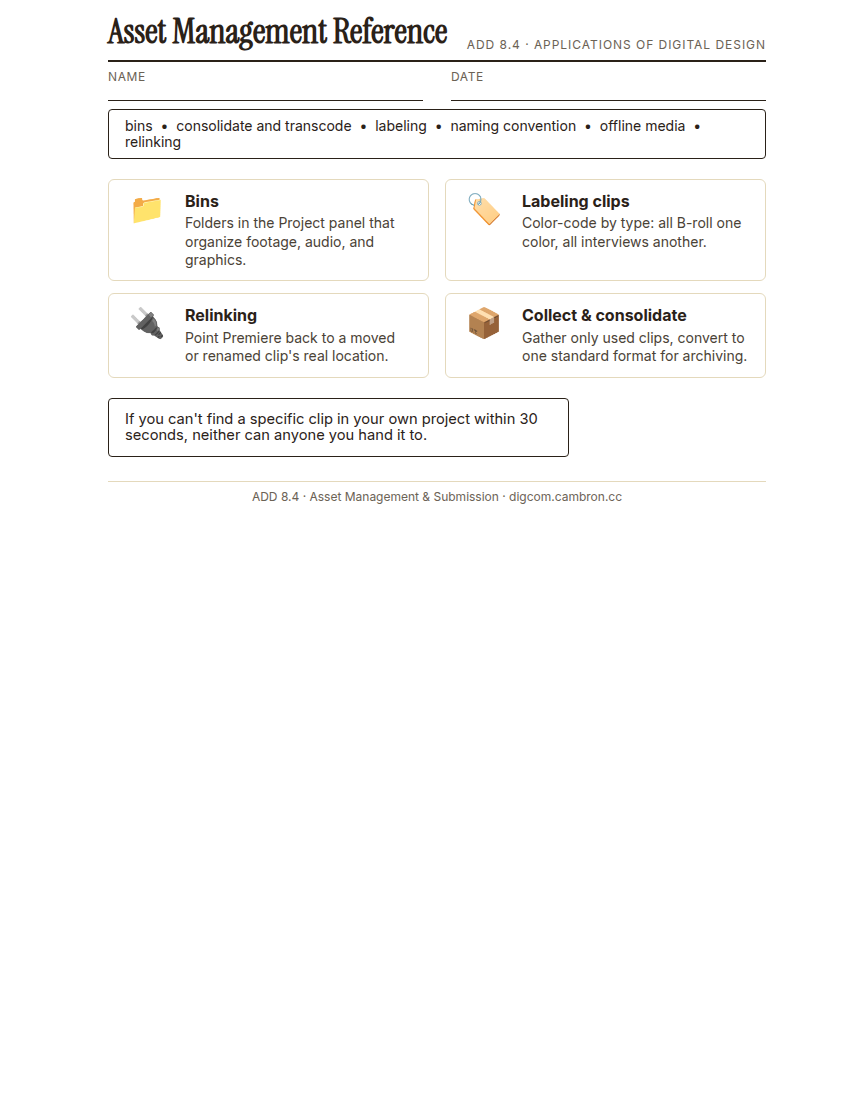
- Folders inside the Project panel used to organize footage, audio, and graphics. Named after the physical trim bins used to organize film reels during analog editing.
- Relinking
- Manually pointing Premiere back to a clip’s file after it’s been moved, renamed, or is missing. Without it, a moved clip shows as an offline/red placeholder.
- Labeling Clips
- Assigning a color label to clips in the Project panel or timeline to organize by type (for example, all B-roll one color, all interviews another) for faster visual scanning.
A brilliant edit in a project nobody else (including future you) can navigate isn’t actually finished. Today’s about the unglamorous habits that make a project reusable.
Direct Instruction (~10 min)
Complete the handout, three hole punch it, and keep it in your class binder.
⬇ Download Worksheet (PDF)Bins organize footage, audio, and graphics the way physical trim bins organized film reels. Labeling clips with color adds a fast visual scan (all B-roll one color, all interviews another). A consistent naming convention (LastName_FirstName_Project_v2.mp4) means anyone can identify a file without opening it. Offline media shows up as a red placeholder when Premiere can’t find a moved or renamed file, relinking manually points it back to the right location.
When a project’s finished, Collect Files (part of Premiere’s Project Manager) gathers only the clips a sequence actually uses into a new folder, then consolidate and transcode converts everything to one standard format, an archive built to reopen cleanly a year from now.
“If you can’t find a specific clip in your own project within 30 seconds, neither can anyone you hand it to. That’s not a minor inconvenience, on a real production it’s a missed deadline.”
Scaffolded questions. Cold-call through all three:
Recall: “What’s the difference between Collect Files and simply copying the whole project folder?”
Analysis: “Why does a consistent naming convention matter more on a team project than a solo one?”
Synthesis/Extension: “You open a project a year from now with no bins, no labels, and three offline clips. What’s your first move?”
Guided Practice (~23 min)
- Open the provided messy project: unorganized bins, at least one offline clip.
- Build a bin structure and a naming convention, then sort every asset into it.
- Resolve the offline clip by relinking it to its correct file.
- Archive the project using Project Manager’s Collect Files/consolidate and transcode.
- Partner check: trade projects. Can your partner find a specific clip you name within 30 seconds?
What would have been unclear to a stranger opening this project before your organization pass?
GMetrix/BrainBuffet (~30 min)
Continue this term’s Premiere Pro GMetrix module.
Exit Ticket / Wrap-Up (~5 min)
🗂 Organize: Put your guided notes in your binder. Save your organized project screenshot and archived project folder in the Project Files folder of your Digital Design project folder on Google Drive.
📤 Exit Ticket: 3-2-1. On a scrap of paper, write in complete sentences, not a list of fragments: 3 sentences describing things you did or made today, 2 sentences naming techniques or tools you used and how, and 1 sentence asking a question you still have.
Stuck on how to start? Try: “Today I ___. I also ___. I used ___ to ___. I also used ___ to ___. I’m still wondering ___.”