3.4 | Captions & Accessibility
Key Terms
- Captions
- On-screen text that displays a video’s spoken dialogue and relevant sound effects, letting viewers follow along without audio.
- Subtitles
- On-screen text translating or transcribing dialogue, typically assuming the viewer can already hear other audio cues (unlike captions).
- Audio Descriptions
- A narrated track describing key visual information for viewers who are blind or have low vision.
- Transcripts
- A full text record of a video’s spoken audio, useful for accessibility, editing, and search.
- Auto Transcribing
- Software automatically generating a transcript from spoken audio. Fast, but needs a human proofread pass for accuracy.
- Filler Words
- Verbal habits like “um,” “uh,” or “like” that a transcript-based edit makes easy to find and remove.
- Text Overlays
- Graphics like lower thirds or titles placed over video to add names, context, or emphasis.
- Color Contrast
- The difference in brightness between text and its background. Captions and overlays need enough contrast to stay readable over any footage.
- Audio Clarity
- How easily a viewer can understand spoken dialogue. Affected by background noise, mic choice, and levels.
A huge share of video is watched muted. Social feeds, waiting rooms, classrooms. Captions aren’t an afterthought. They’re how most people will actually experience your story.
Direct Instruction (~10 min)
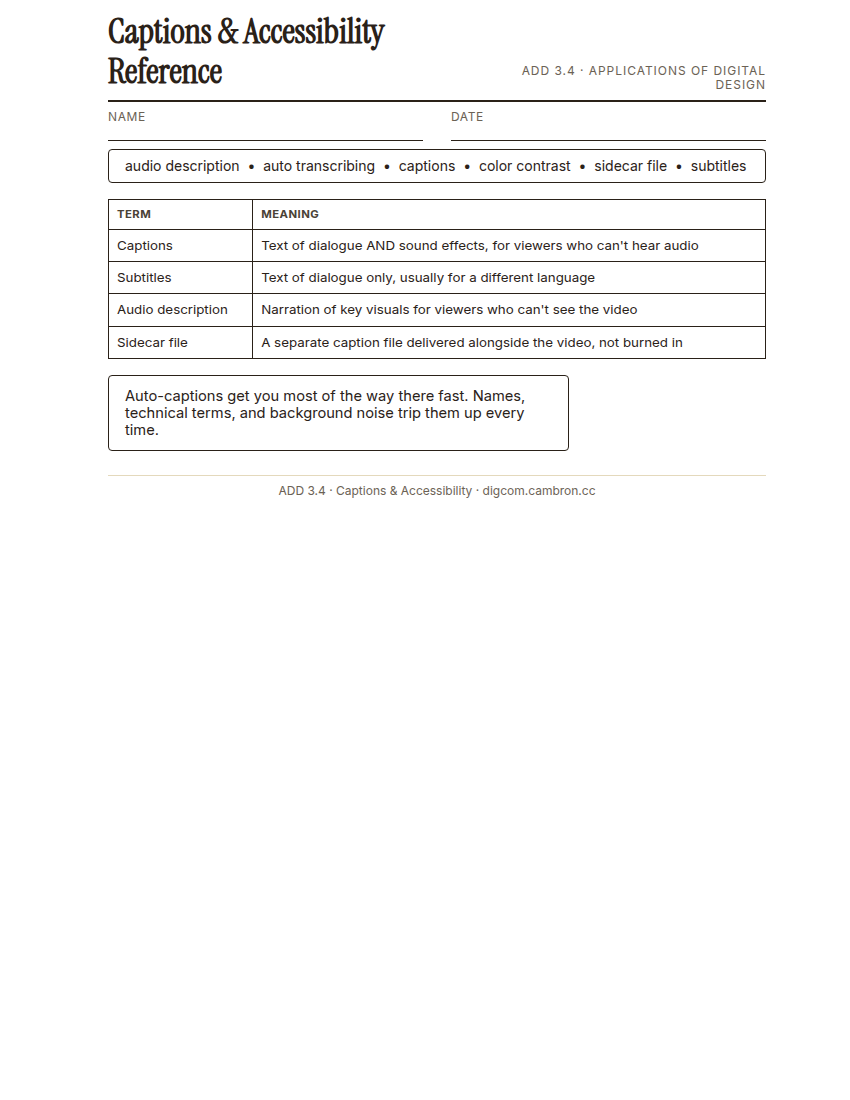
Complete the handout, three hole punch it, and keep it in your class binder.
⬇ Download Worksheet (PDF)“Auto-captions get you most of the way there fast. But names, technical terms, and background noise trip them up every time. A human proofread pass is not optional if accuracy matters.”
Walk through: captions vs. subtitles vs. audio descriptions, generating a transcript with auto transcribing, proofreading for accuracy, and checking color contrast for readability.
Scaffolded questions. Cold-call through all three:
Recall: “What’s the difference between captions and subtitles?”
Analysis: “Why can’t you trust auto-generated captions without a human proofread pass?”
Synthesis/Extension: “Your news story will be watched both on TV (sound on) and on social media (often muted). How does that change what ‘accessibility’ means for this one piece?”
Guided Practice | Caption Your Story (~23 min)
- Auto-generate captions on your 3.3 edit.
- Proofread every line: fix misheard names, technical terms, and punctuation.
- Check color contrast: make sure captions stay readable against every background in your footage, adjusting style if needed.
- Export two deliverables: a version with captions burned in, and a separate sidecar caption file.
- Partner proofread: swap with a partner and catch anything the other missed.
Cold call check: your auto-captions spelled your interview subject’s name wrong throughout. What’s the real-world cost of shipping that without fixing it?
GMetrix/BrainBuffet (~30 min)
Finish Module 2’s completion checkpoint, then start Module 3: Horror Chase “No Way Out”: its pacing and cinematic-crop content previews Unit 4.
Exit Ticket / Wrap-Up (~5 min)
🗂 Organize: Save your burned-in captioned export in the Exports folder of your Digital Design project folder on Google Drive. Save your sidecar caption file in the Exports folder of your Digital Design project folder on Google Drive.
📤 Exit Ticket: 3-2-1. On a scrap of paper, write in complete sentences, not a list of fragments: 3 sentences describing things you did or made today, 2 sentences naming techniques or tools you used and how, and 1 sentence asking a question you still have.
Stuck on how to start? Try: “Today I ___. I also ___. I used ___ to ___. I also used ___ to ___. I’m still wondering ___.”