8.4 | Generative AI in Illustrator
Key Terms
- Generate Vector (Text to Vector Graphic)
- An Illustrator generative AI feature that produces original, editable vector artwork directly from a written text prompt, offering several variations to choose from and refine further.
- Prompt Writing
- The practice of writing a clear, specific instruction for a generative AI tool. Effective prompts usually name a subject, an art style, and a color palette or mood. Vague prompts produce unpredictable results.
Generative AI in Illustrator is a fast way to get a rough starting point. It is not a fast way to get a finished, client-ready asset. Today’s lesson treats it exactly like that: a sketch, not a final answer.
Today you’ll use Illustrator’s built-in generative AI to turn a written prompt into vector artwork. Before you use anything it generates in a real project, though. That’s next unit’s first lesson, and it matters.
[10 Mins] Bell Ringer / Hook
Here are two AI-generated results from the same tool: one came from the prompt “a bird,” the other from “a small, geometric hummingbird icon in a flat two-color style, teal and orange.” Which one looks more usable, and why?
“Same tool, wildly different results. Because one prompt actually told it what to make.”
[10 Mins] Direct Instruction
“I Do”: the teacher live-demos, using Illustrator’s Text to Vector Graphic feature:
- Entering a vague, one-word prompt and generating results, pointing out how unpredictable and generic they look.
- Rewriting the prompt to name a subject, an art style, and a color palette, and regenerating. Comparing the noticeably more usable results.
- Selecting one of the generated variations and opening it in the artboard as real, editable vector paths.
- Hand-editing the result (adjusting a color, deleting or simplifying an element) to show that the generated artwork is meant as a starting point, not a finished, submittable asset.
Check for Understanding Recall: “What three things does a strong prompt usually name?” Analysis: “Why did the vague one-word prompt produce such inconsistent results compared to the detailed one?” Synthesis: “Your S8 sticker pack needs 5 related stickers that all feel like part of one set. How would you write your prompts to make sure the AI-generated starting points feel consistent with each other?”
[23 Mins] Guided Practice
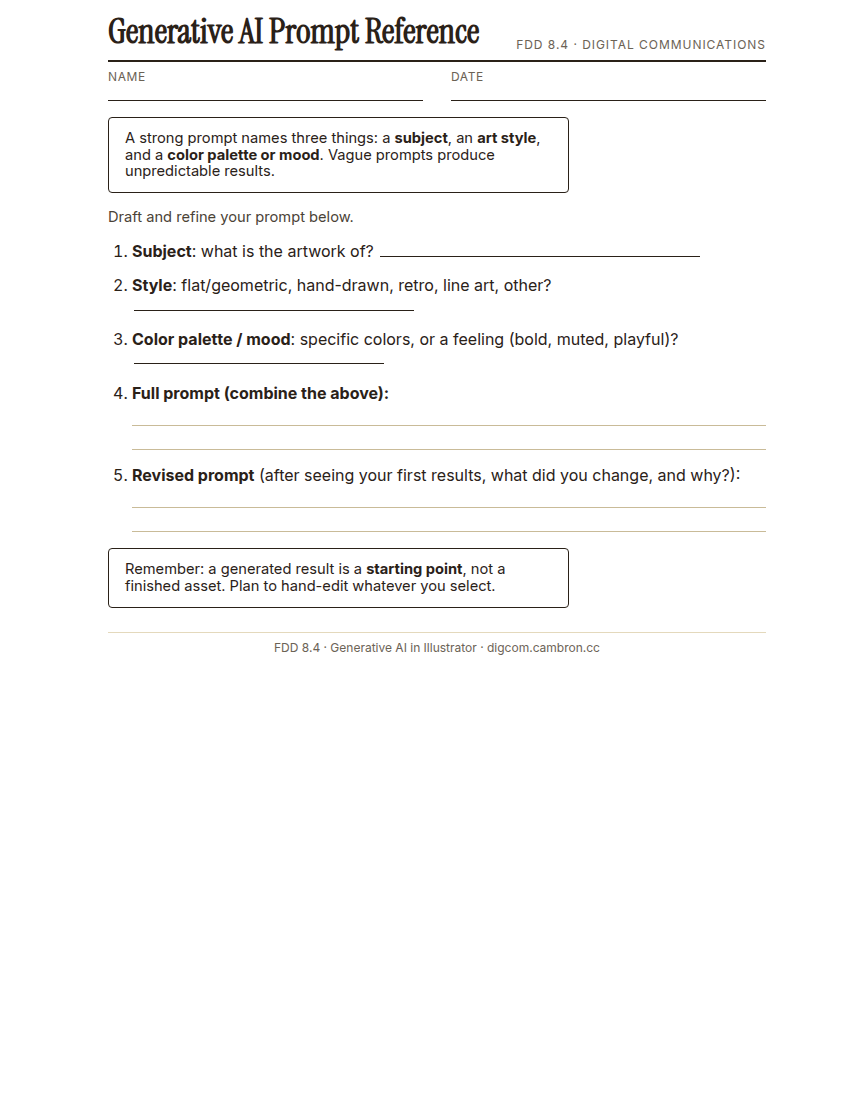
Complete the handout, three hole punch it, and keep it in your class binder.
⬇ Download Worksheet (PDF)- Write a first prompt naming a subject, a style, and a color palette or mood.
- Generate variations, then revise your prompt at least once based on what came back.
- Select your best result and hand-edit it: adjust at least one color, shape, or detail so it’s genuinely different from the raw generated output.
- Group prompt swap (5 min): trade your best prompt with another group. Run their prompt yourself and compare what you each got back from the identical text.
[30 Mins] GMetrix / BrainBuffet Self-Guided Strand
Finish GMetrix Module 5. Dobson Business Card if not already complete. Students who finish early may begin Module 6. Generative AI & Exam Tips, which reinforces today’s lesson directly.
[5 Mins] Exit Ticket / Wrap-Up
Save your file as LastName_FirstName_8_4_GenerativeAI.ai. You now have all four Unit 8 tools, brushes/patterns, symbols/styles, Image Trace, and generative AI, ready for S8.
🗂 Organize: Put the exact text of your final prompt in your binder. Save your 2+ generated prompt variations (screenshot) in the Photos folder of your Digital Design project folder on Google Drive. Save your one selected result, hand-edited afterward in the Project Files folder of your Digital Design project folder on Google Drive.
📤 Exit Ticket: 3-2-1. On a scrap of paper, write in complete sentences, not a list of fragments: 3 sentences describing things you did or made today, 2 sentences naming techniques or tools you used and how, and 1 sentence asking a question you still have.
Stuck on how to start? Try: “Today I ___. I also ___. I used ___ to ___. I also used ___ to ___. I’m still wondering ___.”