7.1 | The Layers Panel
Key Terms
- Sublayer
- An item nested inside a layer in the Layers panel. Every path, group, or object Illustrator creates gets its own sublayer automatically. Expand a layer’s disclosure triangle to see and select individual sublayers.
- Stacking Order
- The front-to-back order objects are drawn in, both within a layer and between layers. Items higher in the Layers panel list draw in front of items below them. Dragging a layer or sublayer up or down in the panel changes what’s visually on top.
- Merge Layers
- Combining two or more selected layers into one, while keeping each object’s relative stacking order intact. Different from Flatten Artwork, which collapses every layer in the document into a single layer and can’t be limited to a selection.
A messy Layers panel is a messy file. If you can’t find an object by its name, neither can your client, and neither will you in three weeks.
Every file you’ve built so far in Illustrator has lived on a single, unnamed layer. That’s fine for a five-object composition, but it falls apart the moment a file has 40 objects and three deadlines. Over Unit 7 you’ll learn to control where objects sit (the Layers panel, today), how they look (Appearance, Effects, and Transparency, 7.2–7.4), building toward a finished poster in this unit’s project.
[10 Mins] Bell Ringer / Hook
Put these five things in order from “you’d touch it first” to “you’d touch it last”: a folder inside a filing cabinet drawer, the filing cabinet itself, a sticky note on top of the folder, the drawer, the room the cabinet is in.
“Whatever’s true for that filing cabinet is true for Illustrator’s Layers panel. What’s listed higher in the panel sits visually in front of everything listed below it. Today we’re learning to control that stack on purpose instead of by accident.”
[10 Mins] Direct Instruction
“I Do”: using unit7_layers_start.ai (an intentionally messy 6-object file: a sky, two clouds, a mountain, and two birds, all dumped on “Layer 1”), the teacher live-demos:
- Opening the Layers panel (Window > Layers) and noting every object already has its own sublayer, just unnamed.
- Double-clicking a sublayer’s name to rename it something useful (
Sky,Mountain,Cloud (left)). - Creating three new top-level layers (
Background,Midground,Foreground) and dragging the renamed sublayers into the correct one. - Dragging a whole layer up or down in the panel to fix a stacking order mistake (a bird accidentally hidden behind the mountain).
- Selecting the two cloud sublayers and choosing Merge Selected from the panel menu. Note that this keeps their relative order, unlike Flatten Artwork, which would collapse the whole file.
Check for Understanding: cold-call three students, one question each: Recall: “What does dragging a layer to the top of the list do to that object?” Analysis: “Why did merging the two clouds not change how the image looks, even though the Layers panel changed?” Synthesis: “If you were handed a 40-object file on one layer, what would your first three layer names be, and why those three?”
[23 Mins] Guided Practice
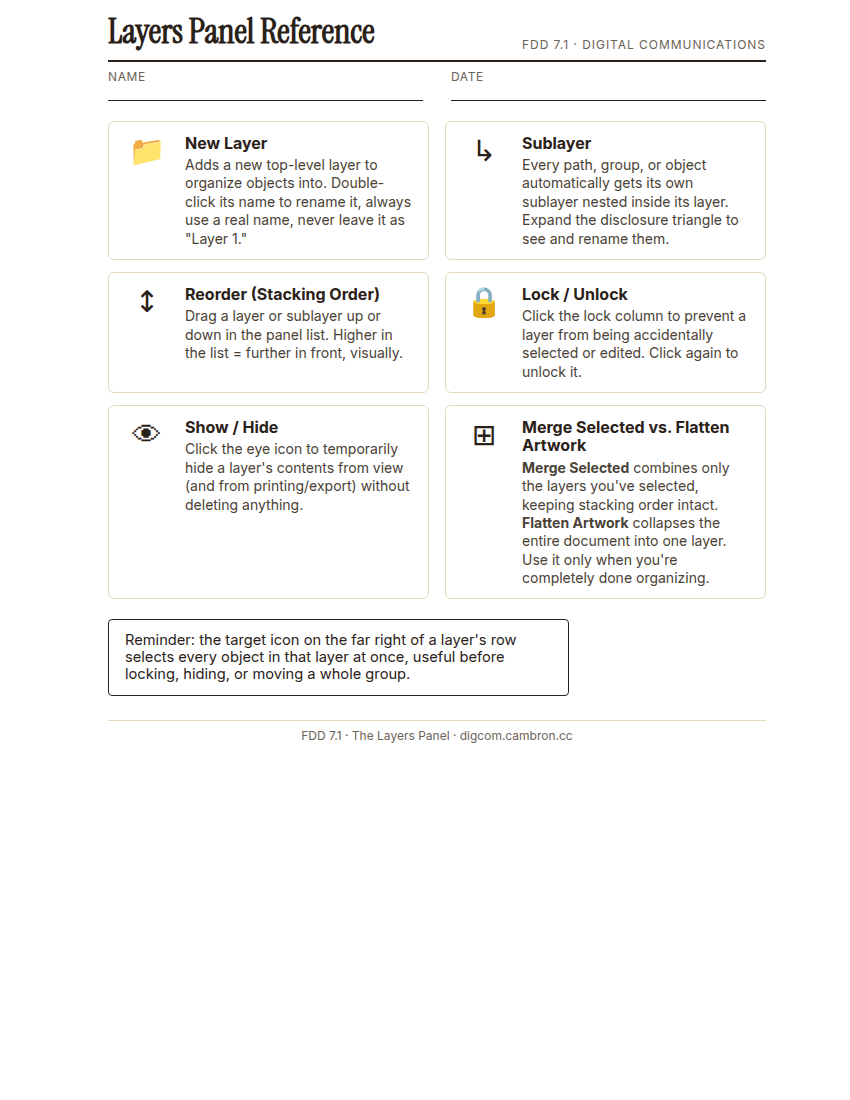
Complete the handout, three hole punch it, and keep it in your class binder.
⬇ Download Worksheet (PDF)Turn and Talk (2 min): before opening your file, tell your partner: what 3 layer names would you use for unit7_layers_start.ai, and in what order?
- Open your own copy of
unit7_layers_start.ai. - Rename every sublayer to something specific. No object should be left as “Path” or “
." - Create at least 3 named layers and sort every object into one.
- Find and fix the stacking-order mistake (a bird is hidden: find it and move its layer above the object hiding it).
- Select two related sublayers and use Merge Selected to combine them into one.
- Lock your
Backgroundlayer so it can’t be accidentally edited, and take a screenshot of your finished Layers panel.
[30 Mins] GMetrix / BrainBuffet Self-Guided Strand
Log in to BrainBuffet and continue Module 4: Dobson Poster. This module builds a poster using layers, effects, gradients, brushes, and symbols. Today, pay close attention to how the Dobson Poster’s own layer structure is named and organized, since it’s the same skill you just practiced.
[5 Mins] Exit Ticket / Wrap-Up
Save your practice file as LastName_FirstName_7_1_Layers.ai.
🗂 Organize: Put one sentence naming which stacking-order problem you fixed in your binder. Save your reorganized practice file (screenshot of the Layers panel) in the Photos folder of your Digital Design project folder on Google Drive.
📤 Exit Ticket: Stoplight. In the discussion board below, let us know how you’re doing: G (green: I’ve got this, ready to move on), Y (yellow: I mostly get it, still have a question), or R (red: I’m stuck, I need help). Then explain your rating in at least 3 sentences (aim for 5): what specifically about today’s skill makes you feel that way, and, if you’re yellow or red, what your actual question is.
Stuck on how to start? Try: “I picked ___ because ___. Specifically, when I tried to ___, I ___. One thing that would help is ___.”