4.2 | Pen Tool Bootcamp
Key Terms
- Pen Tool
- Draws precise straight and curved paths by placing anchor points one at a time. Click for a corner point, click-drag for a smooth point.
- Curvature Tool
- Draws smooth curves and straight lines intuitively. Click to place points and Illustrator previews the curve, letting you adjust already-placed points by dragging without switching tools.
- Pencil Tool
- A freehand drawing tool for sketchy, natural-feeling paths, drawn by dragging the cursor like a pencil on paper.
- Paintbrush Tool
- Draws a path with a chosen brush style (calligraphic, scatter, art, bristle, or pattern) applied along it.
- Blob Brush Tool
- Draws a filled, brush-shaped vector shape rather than a stroked path. Overlapping strokes of the same color merge automatically into one shape.
- Line Segment Tool
- Draws a single straight line segment by clicking and dragging, or by clicking once to open a dialog for a precise length and angle.
- Selection Tool
- The solid black arrow (shortcut V). Selects and moves an entire object, group, or several objects at once by their bounding box.
- Direct Selection Tool
- The hollow white arrow (shortcut A). Selects and edits individual anchor points, segments, or direction handles within a path, without moving the whole object.
- Lasso Tool
- Selects anchor points or whole paths by freehand-dragging an irregular loop around them.
- Group Selection Tool
- Nested with the Direct Selection tool. One click selects a single object inside a group, a second click on the same object selects its whole group, and each additional click selects the next group up.
- Isolation Mode
- Entered by double-clicking a group or object. Temporarily dims and locks everything else on the artboard so you can edit inside the group without accidentally affecting the rest of the artwork.
Today you pick up the Pen tool for real. Every low poly facet and every stained-glass panel in your final piece will be built from the same two moves you’ll practice today: placing a corner point and placing a smooth point.
Direct Instruction | Live Demo (~10 min)
“Watch my hands, not just the screen. A single click places a corner point. Sharp, no curve. Click and drag places a smooth point. See how dragging pulls out these two direction handles, and how they control the curve on both sides?”
The teacher live-demos, narrating each click:
- A corner-only shape (for example, a triangle). Click, click, click, close the path.
- A smooth-only curve (for example, a wave). Click-drag, click-drag, watching the handles.
- A combination path (for example, a leaf or shield) mixing both in one shape.
Recall: What’s the physical difference between how you place a corner point versus a smooth point? Analysis: Why do a smooth point’s two direction handles move together instead of independently? Synthesis/Extension: How would you draw a shape that’s smooth on one side and sharp on the other, at the very same anchor point?
Guided Practice. 3 Pen Tool Mini-Tasks (~23 min)
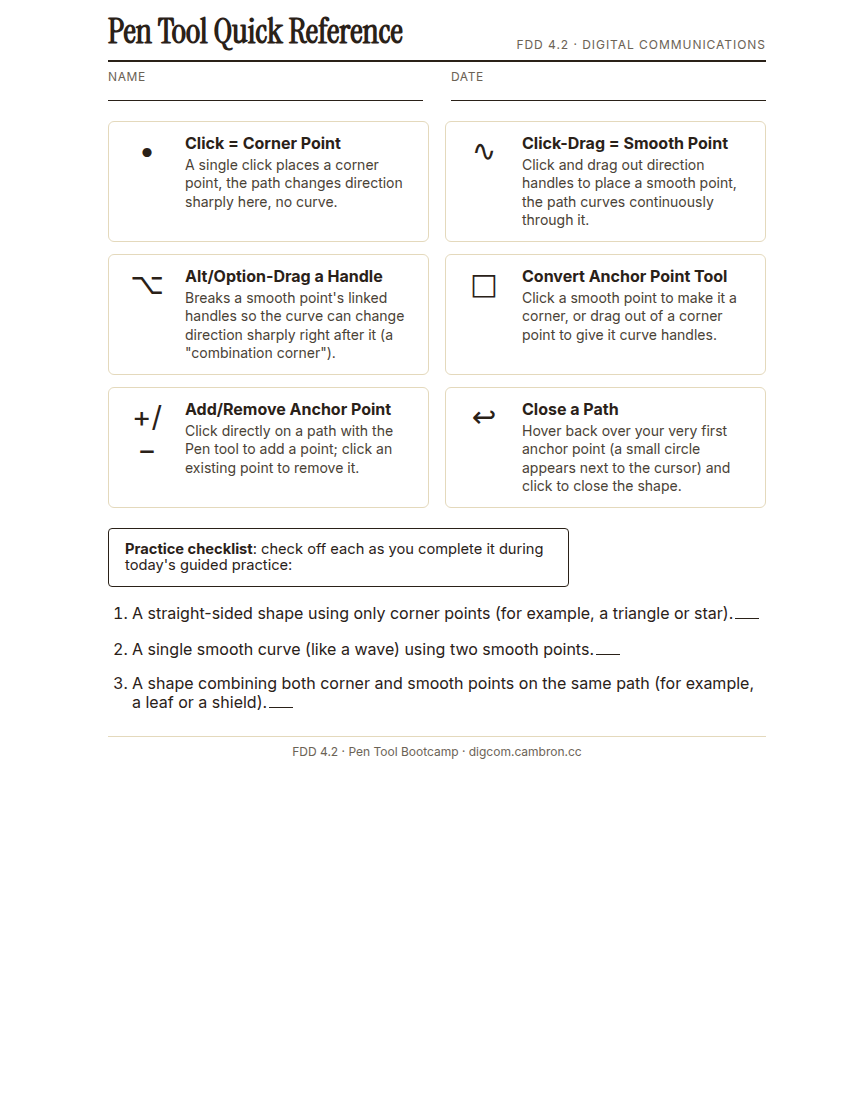
Complete the handout, three hole punch it, and keep it in your class binder.
⬇ Download Worksheet (PDF)- Corners only (~6 min): draw a straight-sided shape (triangle, star, or arrow) using only corner points.
- Curves only (~8 min): draw a single smooth curve (like a wave or a leaf’s outline) using only smooth points. Use the Direct Selection tool to click back onto a point and adjust its handles until the curve looks right.
- Combination path (~9 min): draw one shape combining both corner and smooth points on the same path. A leaf, a shield, or a simple low-poly gemstone facet all work well.
If a path goes wrong, don’t start over. Switch to the Direct Selection tool (white arrow, A) and drag the specific point or handle that’s off. Fixing one point is faster than redrawing.
Exit Ticket / Wrap-Up (~5 min)
Screenshot your finished combination path before you close out.
Which was harder to control today. Corner points or smooth points? Why do you think that is?
🗂 Organize: Save your Illustrator file with all 3 Pen tool mini-tasks in the Project Files folder of your Digital Design project folder on Google Drive. Save your screenshot receipt of the combination-path task in the Photos folder of your Digital Design project folder on Google Drive.
📤 Exit Ticket: Glow & Grow. On a scrap of paper, write about today’s work in at least 3 sentences (aim for 5): describe one Glow (something that went well) and one Grow (one thing you’d do differently or improve next time), explaining each with real detail, not just a phrase.
Stuck on how to start? Try: “My Glow today was ___, because ___. My Grow is ___. Next time I’ll try ___.”