3.4 | Align, Distribute & Arrange
Key Terms
- Align Panel
- The panel used to line objects up relative to each other, to a key object, or to the artboard. Horizontally (left/center/right) and vertically (top/middle/bottom).
- Distribute
- Spacing a set of selected objects out evenly. Either by equal gaps between them or by equal center-to-center distance. Rather than just lining up one shared edge.
- Key Object
- The one object in a selection, designated by clicking it a second time, that the rest of the selection aligns or distributes relative to.
- Stacking Order
- The front-to-back order in which objects are painted on the artboard. The most recently drawn object sits on top. Changed with Object > Arrange (Bring to Front, Bring Forward, Send Backward, Send to Back).
- Group
- Combining multiple objects (Cmd/Ctrl+G) so they move, scale, and transform together as a single unit, while still remaining individually editable inside the group.
- Arrange
- The Object menu command used to change an object’s position in the stacking order.
Colorful shapes (3.3) aren’t a composition yet. Today’s about precisely arranging them.
Direct Instruction (~10 min)
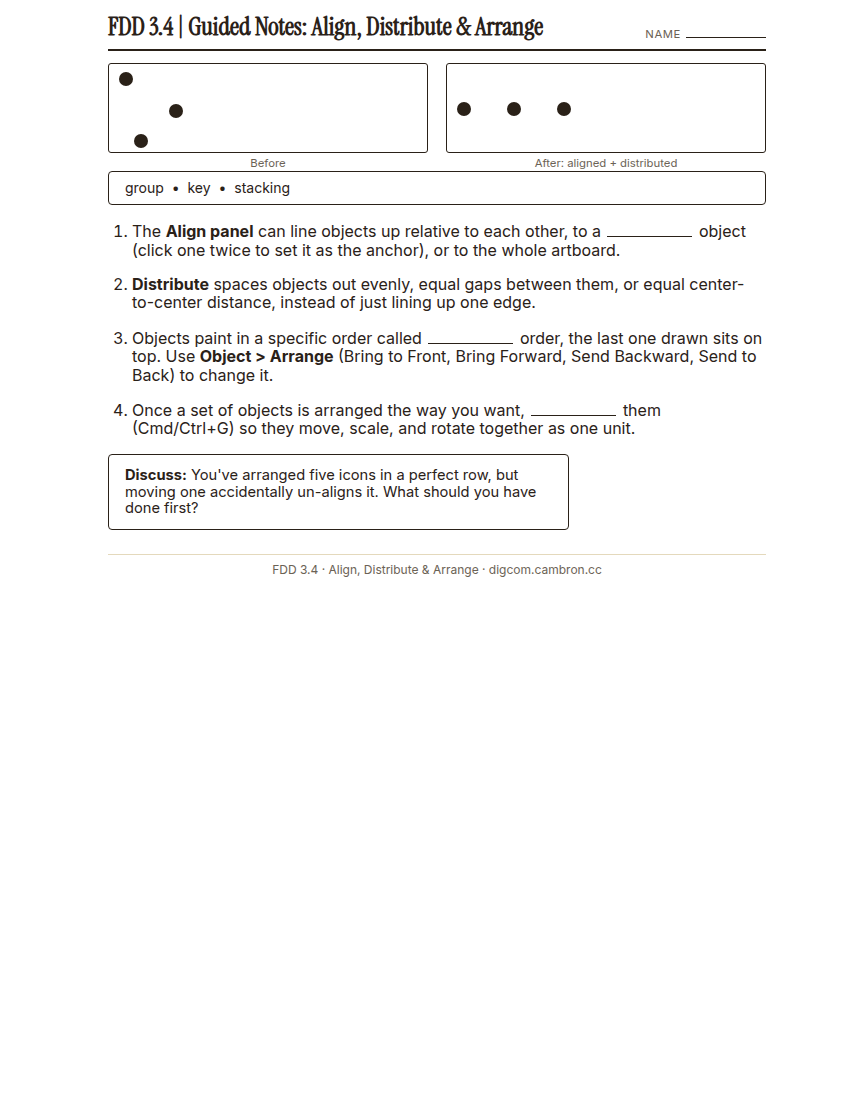
Complete the handout, three hole punch it, and keep it in your class binder.
⬇ Download Worksheet (PDF)The Align panel lines objects up: to each other, to the artboard, or to a Key Object (click any selected object a second time to designate it as the anchor everything else aligns against). Distribute goes a step further, spacing a whole set evenly instead of just sharing one edge.
“Align gets things on the same line. Distribute makes sure the gaps between them are actually equal. Those are two different problems, and eyeballing rarely solves either one.”
Objects also stack in stacking order, the order they were drawn, front to back, changeable with Object > Arrange (Bring to Front, Bring Forward, Send Backward, Send to Back). Once a composition is finished, Group (Cmd/Ctrl+G) locks the pieces together so they move as one.
Scaffolded questions. Cold-call through all three:
Recall: “What’s the difference between Align and Distribute?”
Analysis: “Why would you want to set a Key Object instead of just using ‘align to selection’ by default?”
Synthesis/Extension: “If you had 5 overlapping shapes and needed exactly one specific stacking order, how many Arrange commands might you need, and could you get there faster with fewer clicks?”
Guided Practice | Fix-This-File (~23 min)
- Trade starter files with a partner. Each scene has 5–6 overlapping shapes, scattered with no alignment and a stacking order that hides the wrong pieces.
- Screenshot the “before” state.
- Set a Key Object, then use Align + Distribute to bring the scene into an even, deliberate layout.
- Use Object > Arrange to fix the stacking order so the intended shapes are on top.
- Group the finished composition.
- Screenshot the “after” state and write one sentence naming which single command (Align, Distribute, or Arrange) solved the biggest problem in the file.
- Explain to your partner what you changed and why.
Turn and Talk: could you tell, just by looking at the “before” file, which single command would fix the most obvious problem first?
GMetrix/BrainBuffet (~30 min)
Finish Module 2: Dobson Branding Style Guide today, including its module-completion checkpoint. Due alongside S3.
Exit Ticket / Wrap-Up (~5 min)
🗂 Organize: Put your guided notes and one sentence naming which command solved the biggest problem in your binder. Save your before/after Fix-This-File screenshots in the Photos folder of your Digital Design project folder on Google Drive.
📤 Exit Ticket: 3-2-1. On a scrap of paper, write in complete sentences, not a list of fragments: 3 sentences describing things you did or made today, 2 sentences naming techniques or tools you used and how, and 1 sentence asking a question you still have.
Stuck on how to start? Try: “Today I ___. I also ___. I used ___ to ___. I also used ___ to ___. I’m still wondering ___.”