6.3 | Keying & Green Screen
Key Terms
- Keying
- Removing a specific color or brightness value from a shot to make it transparent, usually to composite in a different background.
- Chroma Key
- Keying out a specific color (typically green or blue). The standard “green screen” technique.
- Luma Key
- Keying out a specific brightness value (light or dark) rather than a color.
- Ultra Key
- Premiere’s primary chroma keying effect, with controls for key color, matte generation, and spill suppression.
- Spill
- Unwanted color (usually green) reflecting off a subject from the screen behind them. Needs to be suppressed for a clean key.
A green screen shot is only half the work. The real skill is making the key invisible, so the composite looks like it was shot in one place, not two.
Direct Instruction (~10 min)
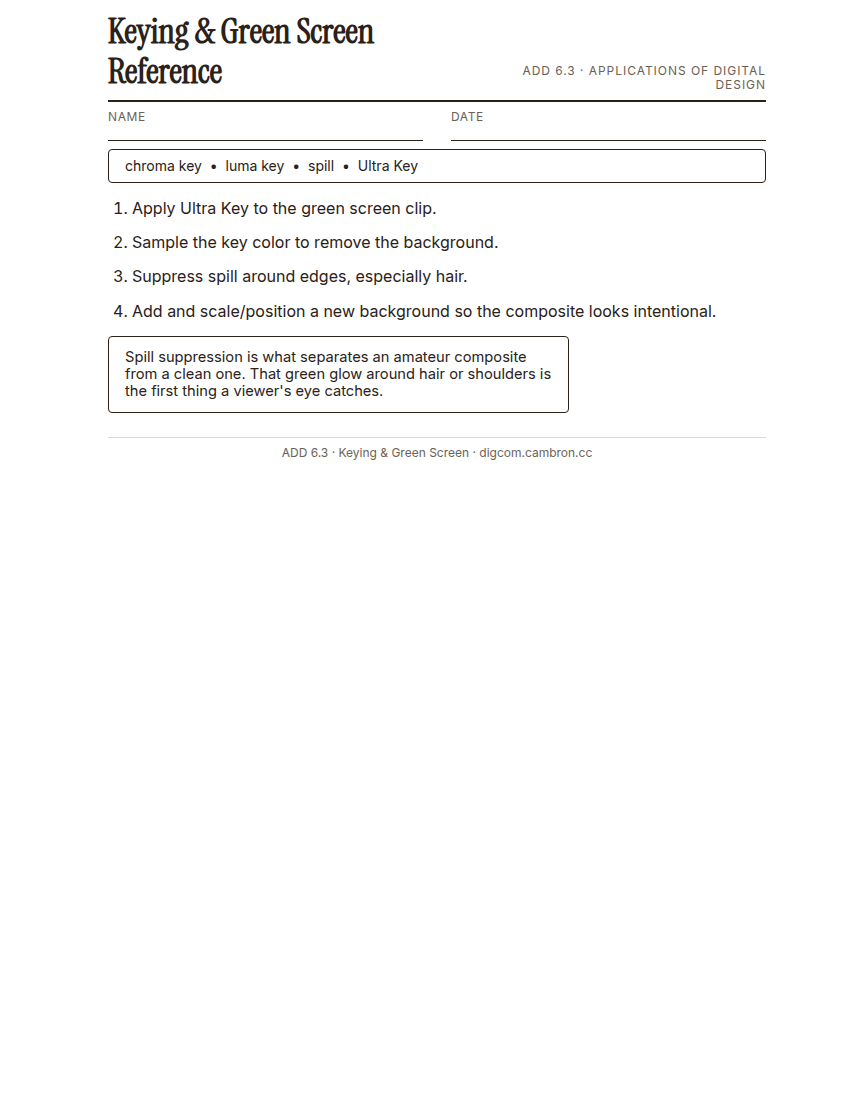
Complete the handout, three hole punch it, and keep it in your class binder.
⬇ Download Worksheet (PDF)“Ultra Key does the heavy lifting, but spill suppression is what separates an amateur composite from a clean one. That green glow around someone’s hair or shoulders is the first thing a viewer’s eye catches.”
Walk through: chroma key vs. luma key, applying Ultra Key, sampling the key color, and suppressing spill around edges and semi-transparent areas like hair.
Scaffolded questions. Cold-call through all three:
Recall: “What’s the difference between a chroma key and a luma key?”
Analysis: “Why does hair cause more keying problems than a solid subject like a jacket?”
Synthesis/Extension: “If your footage was shot on a blue screen instead of green, what would you need to change about your approach?”
Guided Practice | Key & Composite (~23 min)
- Import the provided green screen footage and apply Ultra Key.
- Sample the key color to remove the green background.
- Suppress spill around the subject’s edges, especially hair.
- Add a new background and scale/position the subject so the composite looks intentional.
- Partner troubleshooting: swap with a partner and identify one specific problem (spill/fringing/holes) in their composite.
Cold call check: your subject’s hair has a visible green glow even after keying. What Ultra Key control should you adjust first?
GMetrix/BrainBuffet (~30 min)
Continue Module 4: today’s sections extend into compositing-adjacent effects work.
Exit Ticket / Wrap-Up (~5 min)
🗂 Organize: Save your keyed composite sequence in the Project Files folder of your Digital Design project folder on Google Drive.
📤 Exit Ticket: Emoji Meter. On a scrap of paper, draw ONE face that matches how confident you feel about today’s skill: 🙁 (not yet), 😐 (getting there), or 🙂 (got it). Then explain why in at least 3 sentences (aim for 5), connecting your answer to something specific from today, not just a general feeling.
Stuck on how to start? Try: “I drew ___ because ___. Specifically, when I tried to ___, I ___. Next time I want to ___.”