4.3 | Storyboard & Shot List
Key Terms
- Storyboard
- A sequence of sketches previsualizing a shot’s framing and camera angle before filming. Doesn’t need to be polished, just clear enough to communicate the plan.
- Shot List
- A written, ordered list of every shot a production needs, often tied to specific timing or story beats.
- Pre-Production
- All the planning work that happens before filming. Scripting, storyboarding, securing rights, scheduling.
- Royalty-Free Music
- Music licensed for a one-time fee (or free) that can be used repeatedly without ongoing royalty payments. A safe choice when a production doesn’t have rights to original music.
- Public Domain
- Creative work no longer (or never) protected by copyright. Free to use without permission or licensing.
- Synchronization Rights
- Legal permission to pair a piece of music with visual media. Required any time you use someone else’s music in a video, even a school project.
A video essay lives or dies on sequencing, which means today’s planning work matters as much as anything you’ll shoot. No polished drawing skills required, just a clear plan.
Direct Instruction (~10 min)
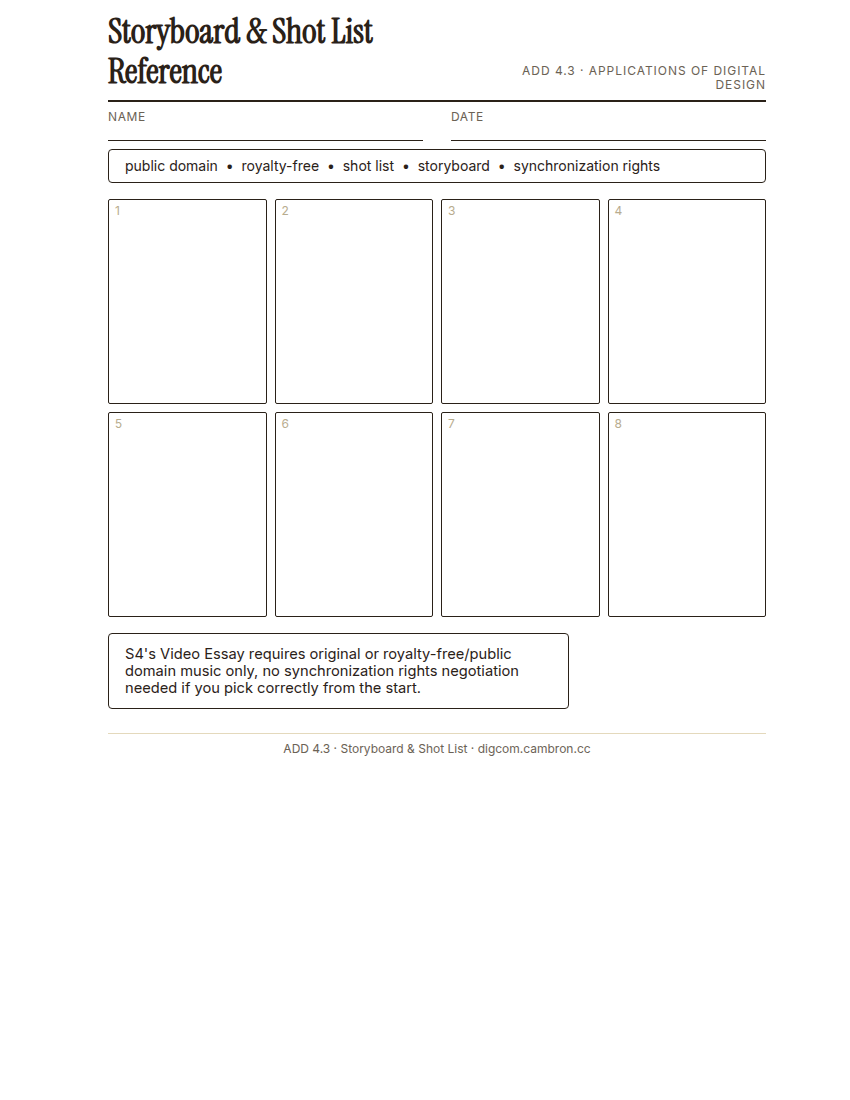
Complete the handout, three hole punch it, and keep it in your class binder.
⬇ Download Worksheet (PDF)“Your storyboard sketches don’t need to be photorealistic. They need to be clear enough that your team knows exactly what shot you mean. Spend an hour on this, not a day.”
Walk through: storyboarding as pre-visualization (not art), building a shot list tied to specific timing, and sourcing royalty-free or public domain music since S4’s Video Essay requires original or royalty-free audio only. No synchronization rights negotiation needed if you pick correctly from the start.
Scaffolded questions. Cold-call through all three:
Recall: “What’s the difference between a storyboard and a shot list?”
Analysis: “Why does the Video Essay summative require royalty-free or public domain music specifically, instead of any song you like?”
Synthesis/Extension: “If your storyboard and your shot list disagreed about a shot’s timing, which would you trust more, and why?”
Guided Practice | Plan Your Video Essay (~23 min)
- Storyboard at least 10 shots, ensuring diversity in framing, depth of focus, and camera angle.
- Build a shot list tied to specific timing or story beats.
- Source your music from a royalty-free or public domain library (see the reference sheet). Confirm the license before committing to it.
- Peer storyboard review: trade with a partner and check for real variety across all 10 shots.
If most of your 10 storyboarded shots are the same wide shot repeated, that’s not diversity. Push yourself to include close-ups, different angles, and varied depth of field.
Cold call check: you find the perfect song for your video essay, but it’s not royalty-free or public domain. What are your options?
GMetrix/BrainBuffet (~30 min)
Continue Module 3: today’s sections extend into pacing, directly relevant to sequencing a video essay.
Exit Ticket / Wrap-Up (~5 min)
🗂 Organize: Put your storyboard sketches in your binder. Save your timed shot list in the Project Files folder of your Digital Design project folder on Google Drive.
📤 Exit Ticket: Emoji Meter. On a scrap of paper, draw ONE face that matches how confident you feel about today’s skill: 🙁 (not yet), 😐 (getting there), or 🙂 (got it). Then explain why in at least 3 sentences (aim for 5), connecting your answer to something specific from today, not just a general feeling.
Stuck on how to start? Try: “I drew ___ because ___. Specifically, when I tried to ___, I ___. Next time I want to ___.”