3.3 | Edit & Text-Based Editing
Key Terms
- B-roll
- Supplementary footage that provides visual context to a story, covering edits or illustrating the topic.
- Sound Bite (SOT)
- A short, edited clip of an interview or speech used to convey a key point.
- Stand-up
- The portion of a report where the reporter appears on camera to deliver information, usually from the scene of the story.
- VO (Voiceover)
- The reporter’s voice track, read live or recorded, laid over video footage.
- Nat Sound/Ambient Sound
- Natural sound from the environment (traffic noise, crowd applause) used to add realism to a story.
- Editing
- The process of cutting and arranging footage and audio into the final news story.
Professional editors rarely scrub through raw footage by eye first. They read the transcript, find what to keep, and cut from there. Today you’ll edit the same way.
Direct Instruction (~10 min)
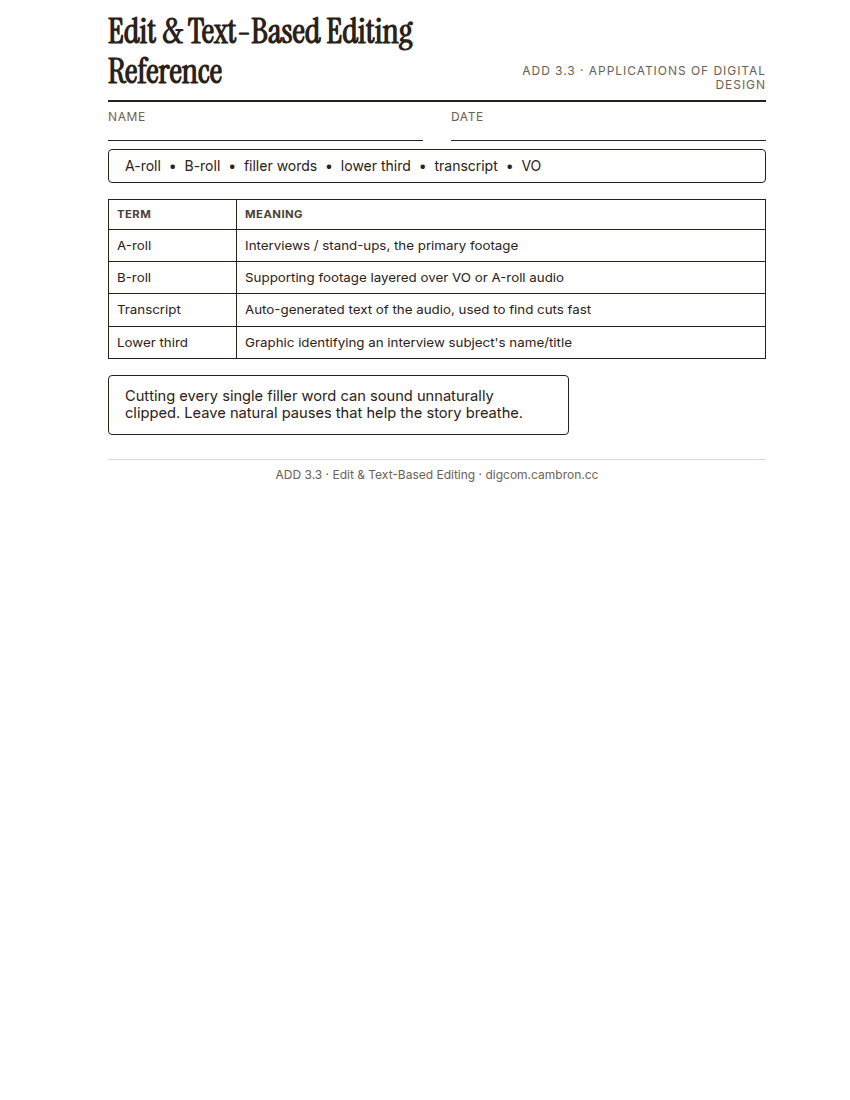
Complete the handout, three hole punch it, and keep it in your class binder.
⬇ Download Worksheet (PDF)“An auto-generated transcript turns your footage into searchable text. You can spot every ‘um,’ every dead pause, every place the story rambles, just by reading, instead of scrubbing back and forth for twenty minutes.”
Walk through: A-roll (interviews/stand-ups) vs. B-roll (supporting footage), generating a transcript and marking filler words for removal, layering B-roll over VO, and adding a lower third graphic to identify an interview subject.
Scaffolded questions. Cold-call through all three:
Recall: “What’s the difference between A-roll and B-roll?”
Analysis: “Why is reading a transcript usually faster than scrubbing through raw footage to find the best sound bite?”
Synthesis/Extension: “A transcript can show you filler words, but what kind of editing problem can’t a transcript catch on its own?”
Guided Practice | Edit Your Story (~23 min)
- Import your footage from 3.2 into your Adobe Express project.
- Generate a transcript of your interview footage and mark filler words for removal.
- Assemble your timeline: A-roll interview clips, with B-roll layered on top over VO where it helps tell the story.
- Add a lower third identifying your interview subject’s name and title.
- Partner check: trade transcripts with a partner and confirm each other’s cut list before committing the edits.
Cutting every single “um” can make a voice sound unnaturally clipped. Leave natural pauses that help the story breathe, and only cut what genuinely distracts.
Cold call check: your interview subject gives a great answer, but pauses for 4 full seconds partway through to think. Does the transcript alone tell you what to do with that pause?
GMetrix/BrainBuffet (~30 min)
Finish Module 2, including its module-completion checkpoint, due this unit.
Exit Ticket / Wrap-Up (~5 min)
🗂 Organize: Save your edited sequence in the Project Files folder of your Digital Design project folder on Google Drive. Save your marked-up transcript in the Project Files folder of your Digital Design project folder on Google Drive.
📤 Exit Ticket: Emoji Meter. On a scrap of paper, draw ONE face that matches how confident you feel about today’s skill: 🙁 (not yet), 😐 (getting there), or 🙂 (got it). Then explain why in at least 3 sentences (aim for 5), connecting your answer to something specific from today, not just a general feeling.
Stuck on how to start? Try: “I drew ___ because ___. Specifically, when I tried to ___, I ___. Next time I want to ___.”